Terminal Basics: Prepare for Claude Code with Ollama
The black window with blinking text looks like something only hackers use. It is actually the fastest way to talk to your computer, and the place where AI coding tools live. Learn the handful of commands you need, then run Claude Code with a free local model through Ollama.
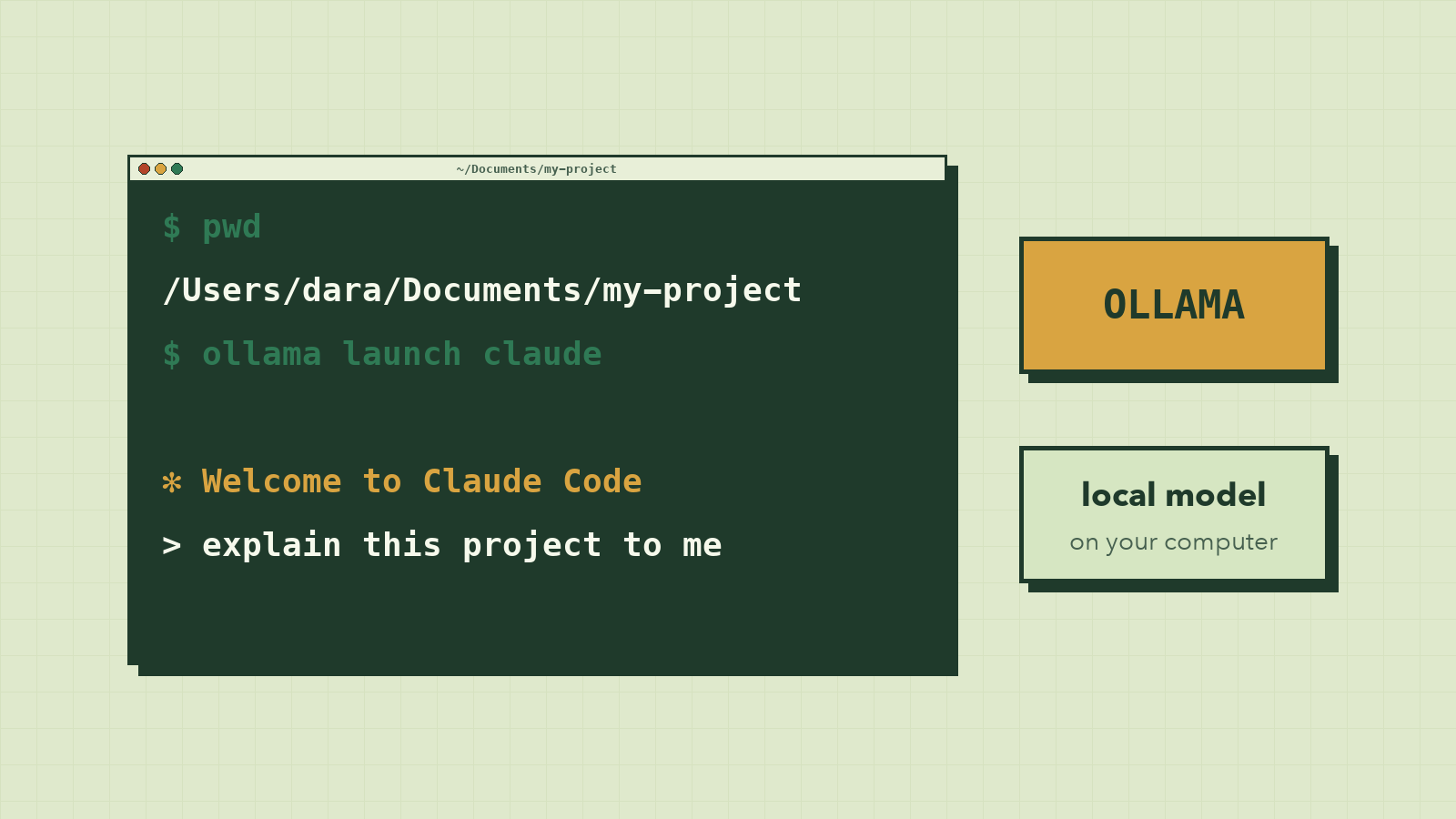
Every developer you admire has a black window open somewhere on their screen. It looks intimidating: no buttons, no icons, just a blinking cursor waiting for you to type.
But it's really just a conversation. You type a short instruction, the computer does it, and it tells you what happened. Once you know a dozen words, it's faster than clicking, and it's where the newest tools live. AI coding agents like Claude Code were built for the terminal first, and they're at their most powerful there.
By the end of this guide you'll move around your computer from the terminal, install Ollama and Claude Code, and run Claude Code with an AI model that lives entirely on your own machine.
This setup was checked against the official Claude Code and Ollama documentation on September 13, 2026. Installation commands can change, so check the linked documentation if a step behaves differently.
Terminal, Shell, and CLI
A terminal is an application that provides a text interface to your computer. Inside it, a shell reads commands and prints their results. Bash, Zsh, and PowerShell are different shells, so they do not always use the same commands.
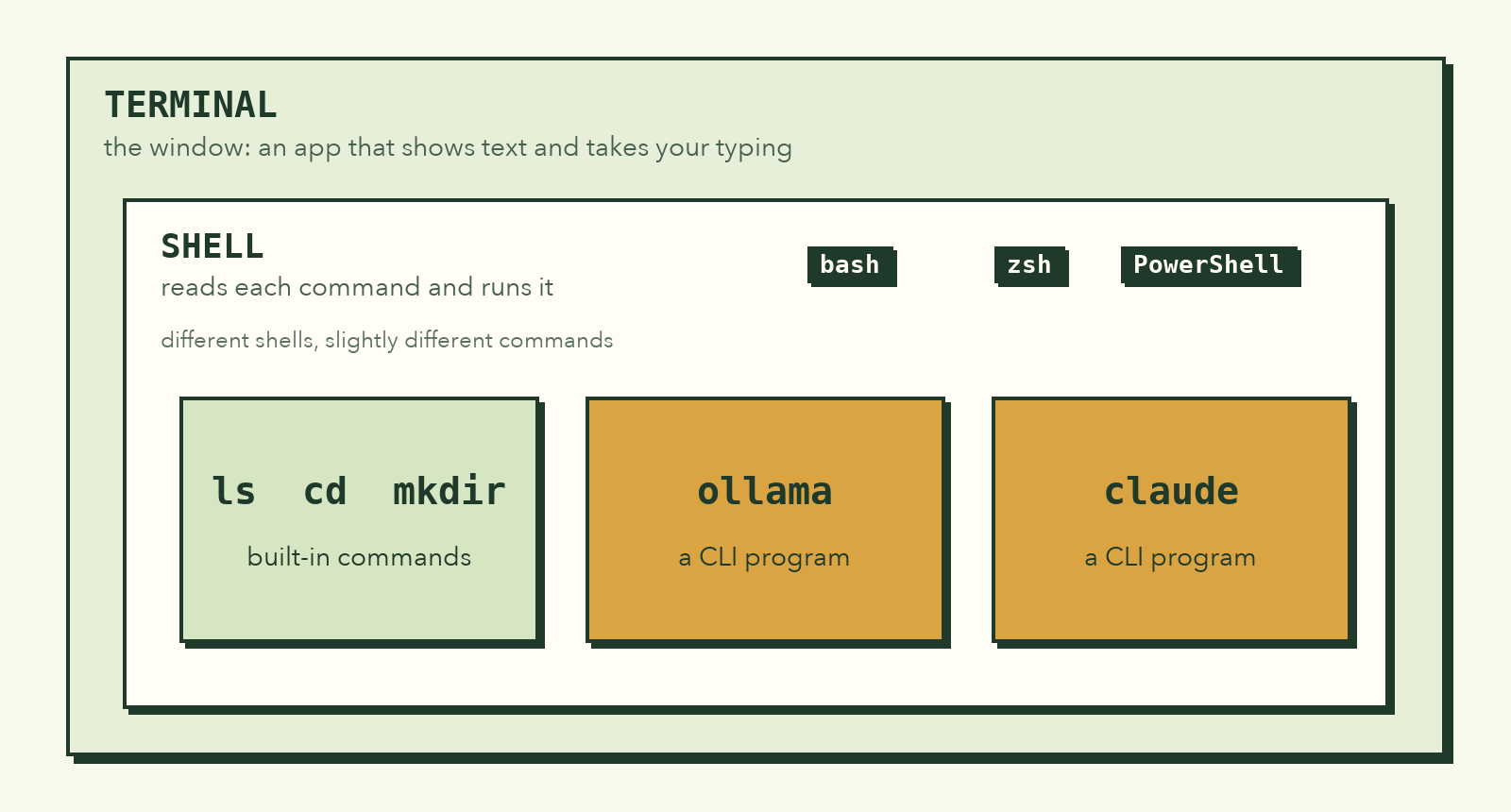
A command-line interface (CLI) is any program you control by typing commands. Both Ollama and Claude Code provide CLIs.
For example, a graphical file manager lets you drag a file into a folder. A shell can perform the same action with a command:
mv notes.txt Documents/
The terminal is precise: it does exactly what the command and current location tell it to do. Before changing or deleting files, confirm where you are and spell out the target.
Open a Terminal
macOS
- Press
Command + Spaceto open Spotlight. - Type
Terminal. - Press
Enter.
A prompt may look like this:
yourname@MacBook ~ %
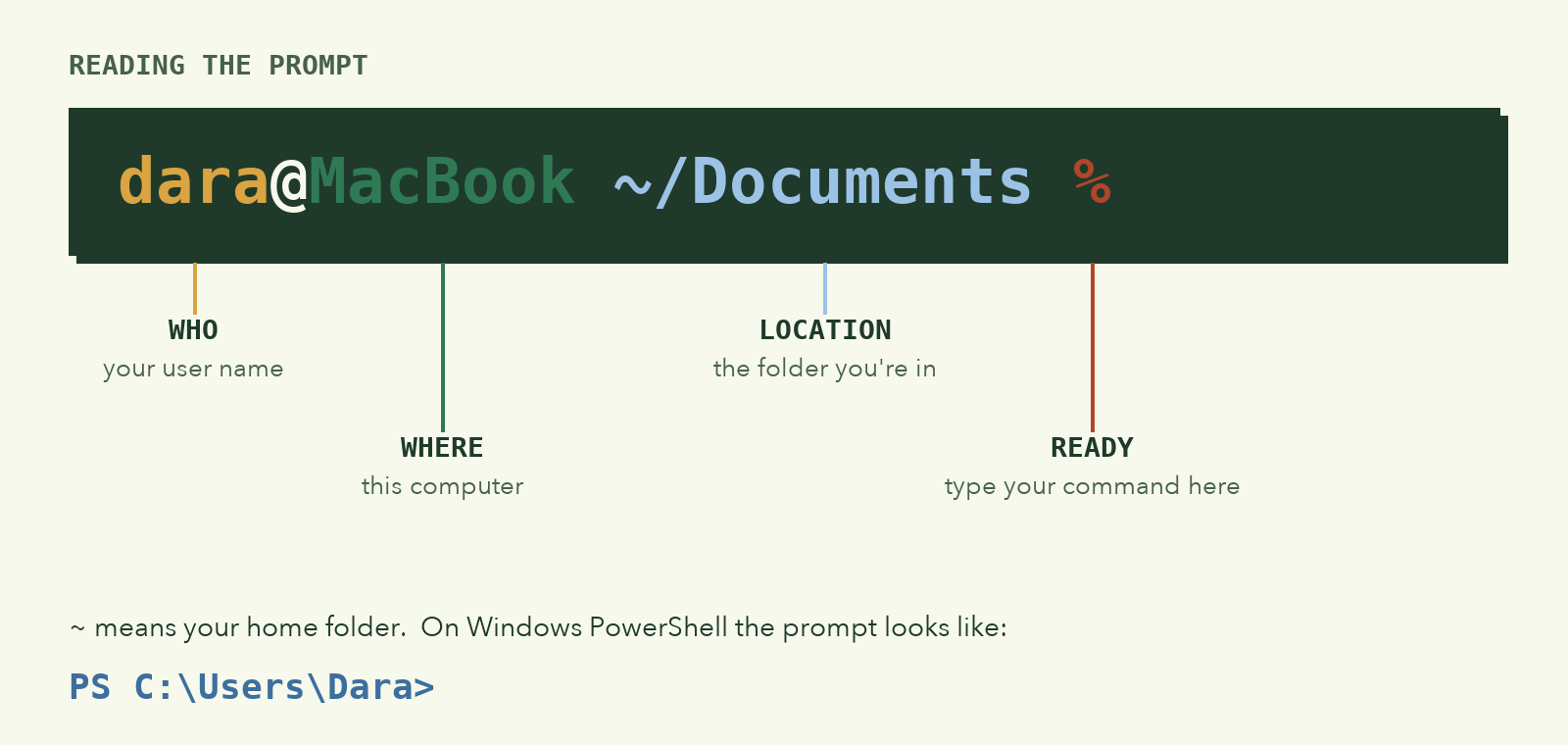
The ~ symbol represents your home folder.
Windows
Claude Code can run in native Windows PowerShell or inside the Windows Subsystem for Linux (WSL).
To open PowerShell:
- Press the Windows key.
- Type
PowerShell. - Press
Enter.
PS C:\Users\YourName>
If you already use WSL, open your Linux distribution from the Start menu:
yourname@DESKTOP:~$
Use the PowerShell column in this guide when your prompt begins with PS. Use the macOS/Linux/WSL column when you are inside WSL.
Linux
On many Linux desktop environments, Ctrl + Alt + T opens a terminal. You can also search your applications for Terminal.
yourname@computer:~$
Essential Commands
Find Your Current Location
| Action | macOS, Linux, WSL | PowerShell |
|---|---|---|
| Show the current folder | pwd |
Get-Location or pwd |
pwd
A macOS result may look like:
/Users/yourname
pwd means print working directory.
List Files and Folders
| Action | macOS, Linux, WSL | PowerShell |
|---|---|---|
| List visible items | ls |
Get-ChildItem or ls |
| Include hidden items | ls -la |
Get-ChildItem -Force |
Run this after changing folders so you know what is there before acting on a file.
Move Between Folders
These commands work in both shell families:
| Action | Command |
|---|---|
| Enter a folder | cd foldername |
| Go to the parent folder | cd .. |
| Go to your home folder | cd ~ |
If a folder name contains spaces, wrap it in quotes:
cd "My Projects"
Create a Folder or File
| Action | macOS, Linux, WSL | PowerShell |
|---|---|---|
| Create a folder | mkdir terminal-practice |
New-Item terminal-practice -ItemType Directory |
| Create an empty file | touch notes.txt |
New-Item notes.txt -ItemType File |
Read a File
| Action | macOS, Linux, WSL | PowerShell |
|---|---|---|
| Print a short file | cat notes.txt |
Get-Content notes.txt |
| Page through a long file | less notes.txt |
`Get-Content notes.txt |
When using less, press q to quit.
Copy, Move, and Rename
| Action | macOS, Linux, WSL | PowerShell |
|---|---|---|
| Copy a file | cp notes.txt notes-copy.txt |
Copy-Item notes.txt notes-copy.txt |
| Rename a file | mv old.txt new.txt |
Move-Item old.txt new.txt |
| Move a file | mv notes.txt Documents/ |
Move-Item notes.txt Documents\ |
Delete Carefully
| Action | macOS, Linux, WSL | PowerShell |
|---|---|---|
| Delete one file | rm notes.txt |
Remove-Item notes.txt |
| Delete an empty folder | rmdir terminal-practice |
Remove-Item terminal-practice |
These commands do not send the target to the Trash or Recycle Bin. Before running one:
- use
pwdorGet-Locationto confirm the current folder; - use
lsorGet-ChildItemto confirm the exact target; - avoid recursive deletion commands until you understand their scope.
Clear the Screen and Stop a Command
| Action | macOS, Linux, WSL | PowerShell |
|---|---|---|
| Clear the terminal display | clear |
Clear-Host |
| Stop the running command | Ctrl + C |
Ctrl + C |
Clearing the screen does not delete your command history or files.
Use Tab Completion
Type part of a file or folder name, then press Tab. The shell completes the name when it can:
cd Down<Tab> → cd Downloads/
Tab completion saves typing and reduces path mistakes.
Practice in a Safe Folder
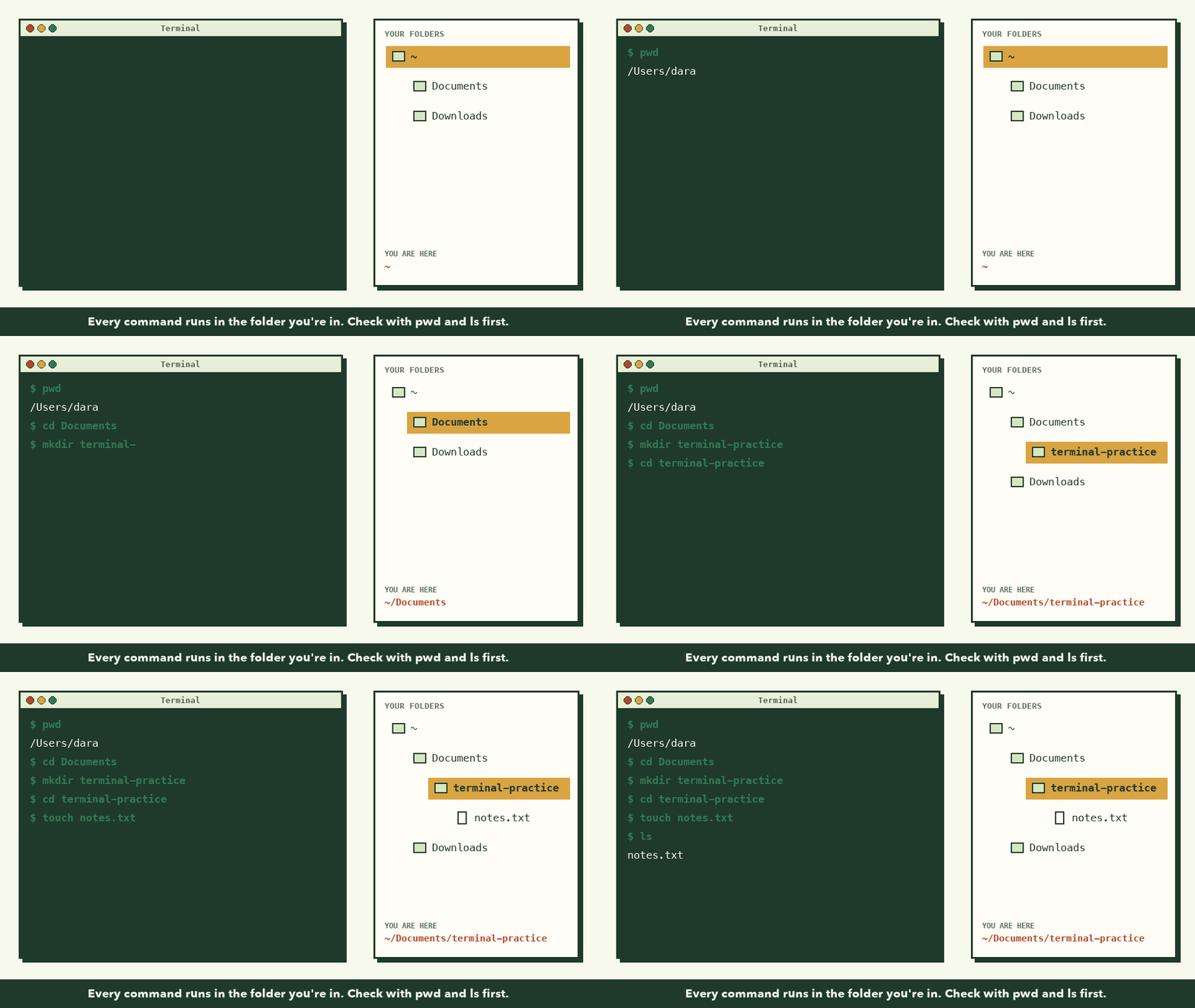
Use a new folder so the practice commands cannot affect an existing project.
macOS, Linux, or WSL
cd ~
mkdir terminal-practice
cd terminal-practice
touch notes.txt
ls -la
pwd
PowerShell
cd ~
New-Item terminal-practice -ItemType Directory
cd terminal-practice
New-Item notes.txt -ItemType File
Get-ChildItem -Force
Get-Location
You have completed the practice when you can identify the current folder and see notes.txt in its contents.
Install Ollama
Ollama runs supported AI models on your computer and exposes them through a local service. Model size, memory use, and speed vary, so check a model's requirements before downloading it.
The initial installation and model download require an internet connection.
macOS
Download the macOS application from the official Ollama download page and move it to Applications. Check the page's current macOS requirement before installing.
Windows
Download and run the Windows installer from the official Ollama download page.
Linux
The official Linux installer currently uses:
curl -fsSL https://ollama.com/install.sh | sh
This command downloads and runs Ollama's installation script. If you do not want to pipe a remote script directly into your shell, follow the manual Linux instructions linked from the download page.
Verify the Installation
Open a new terminal and run:
ollama --version
Then confirm that the local service responds:
ollama list
If the desktop application is not running, you can start the service manually and keep that terminal open:
ollama serve
Install Claude Code
Claude Code is Anthropic's command-line coding agent. The current official documentation recommends the native installer, which does not require you to install Node.js first.
macOS, Linux, or WSL
curl -fsSL https://claude.ai/install.sh | bash
Windows PowerShell
irm https://claude.ai/install.ps1 | iex
Open a new terminal after installation, then verify it:
claude --version
claude doctor
claude doctor checks the installation and reports configuration problems without starting a coding session.
If you prefer npm, the current package requires Node.js 22 or later:
npm install -g @anthropic-ai/claude-code
Do not add sudo to the npm command. Anthropic warns that doing so can create permission and security problems.
For current installation options, read the official Claude Code setup guide.
Run Claude Code With Ollama
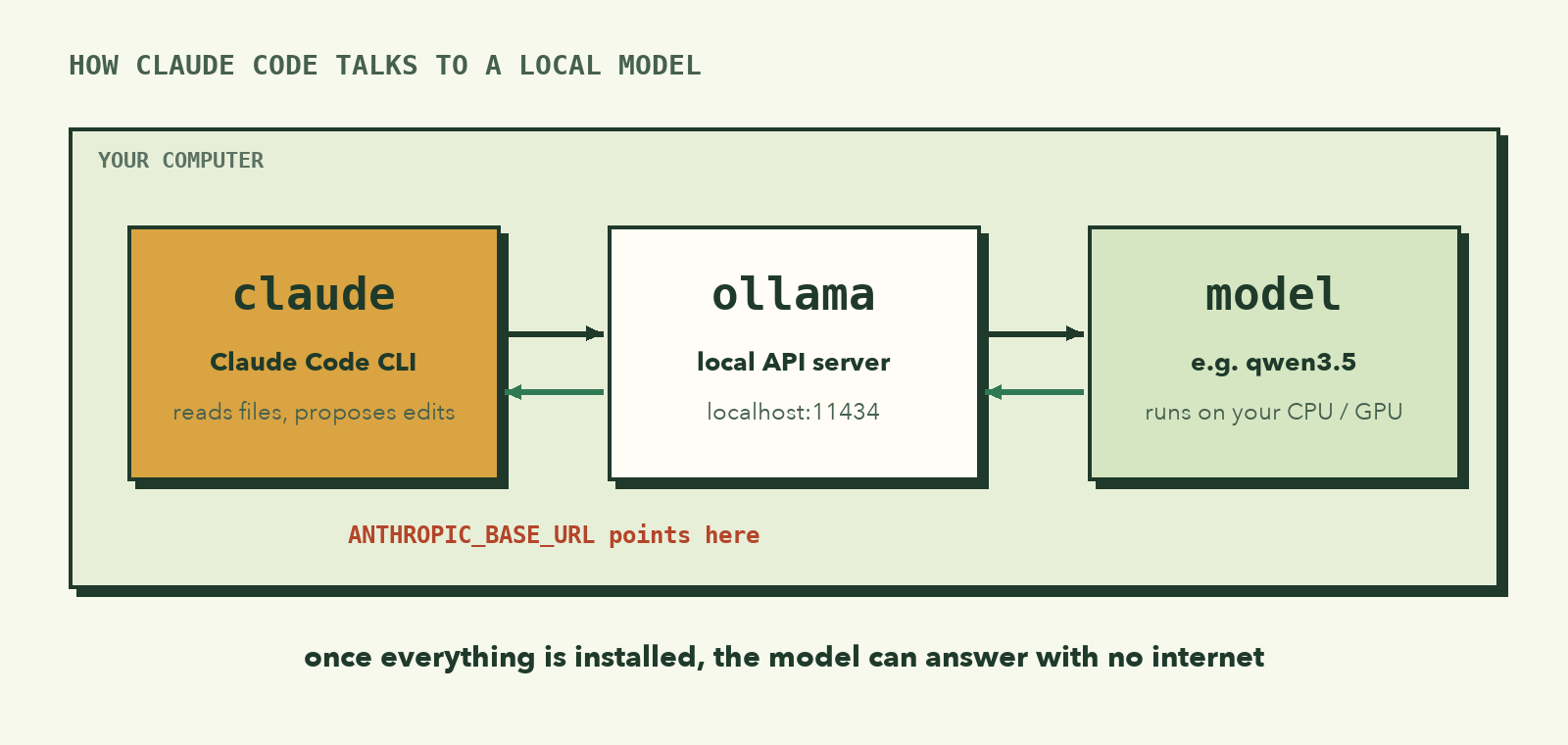
Ollama provides an Anthropic-compatible local API that Claude Code can use.
Recommended Setup
Run:
ollama launch claude
Ollama will ask you to choose a model, configure Claude Code, and launch it. Choose a local model if you want inference to run on your computer. Cloud model names use network services and are not offline.
Claude Code works best with a model that supports tool use and a large context window. Ollama currently recommends at least 64k context for local Claude Code sessions. Check the current Ollama integration guide before selecting a model.
Manual Setup on macOS, Linux, or WSL
If you need to configure the connection yourself, set these variables in the terminal session:
export ANTHROPIC_AUTH_TOKEN=ollama
export ANTHROPIC_API_KEY=""
export ANTHROPIC_BASE_URL=http://localhost:11434

claude --model qwen3.5
The model name is an example. It must match a model available in your Ollama installation.
Manual Setup in PowerShell
$env:ANTHROPIC_AUTH_TOKEN = "ollama"
$env:ANTHROPIC_API_KEY = ""
$env:ANTHROPIC_BASE_URL = "http://localhost:11434"

claude --model qwen3.5
These variables apply to the current terminal session. Opening a new terminal clears them unless you save them in your shell configuration.
Start in a Project Folder
Move to a project before launching:
cd ~/Documents/my-project
ollama launch claude
Claude Code can read files, propose edits, and run commands in that project. Read each permission request before approving it.
After Ollama, Claude Code, and the local model are installed, local model inference can work without an internet connection. Features that call web services, cloud models, or update servers still require network access.
Quick Reference
| Task | macOS, Linux, WSL | PowerShell |
|---|---|---|
| Show current folder | pwd |
Get-Location |
| List items | ls -la |
Get-ChildItem -Force |
| Enter a folder | cd foldername |
cd foldername |
| Go to parent | cd .. |
cd .. |
| Create a folder | mkdir name |
New-Item name -ItemType Directory |
| Create a file | touch file.txt |
New-Item file.txt -ItemType File |
| Read a file | cat file.txt |
Get-Content file.txt |
| Copy a file | cp a.txt b.txt |
Copy-Item a.txt b.txt |
| Move a file | mv a.txt folder/ |
Move-Item a.txt folder\ |
| Delete one file | rm file.txt |
Remove-Item file.txt |
| Start Ollama manually | ollama serve |
ollama serve |
| List Ollama models | ollama list |
ollama list |
| Launch Claude Code through Ollama | ollama launch claude |
ollama launch claude |
| Check Claude Code | claude doctor |
claude doctor |
Common Problems and Fixes
command not found or “not recognized”
Open a new terminal after installation and try again. Check the spelling, then run the tool's verification command. For Claude Code, use claude doctor if claude is available.
Do not assume that a Bash command works in PowerShell. Check which prompt you are using and follow the matching column in this guide.
Permission denied
Do not automatically repeat the command with sudo. First confirm:
- the current folder;
- the file or folder you are trying to access;
- whether your user owns it;
- whether the command needs execute permission.
For Claude Code installation problems, use the native installer or follow Anthropic's permission troubleshooting instead of installing the npm package as root.
Ollama Reports connection refused
Open the Ollama desktop application or start the service:
ollama serve
In a second terminal, run:
ollama list
If ollama serve says the address is already in use, a service may already be running. Test it with ollama list rather than starting another copy.
Claude Code Opens Anthropic Login or Reports an API Error
Use the recommended launcher again:
ollama launch claude
For manual setup, verify that ANTHROPIC_AUTH_TOKEN, ANTHROPIC_API_KEY, and ANTHROPIC_BASE_URL are set in the same terminal where you start claude.
The Model Is Slow or Runs Out of Memory
Stop the command with Ctrl + C. Check the model's hardware and context requirements, then choose a model appropriate for your computer. Claude Code needs a model capable of tool use and enough context for the project; a tiny chat model may run but still perform poorly as a coding agent.
What to remember
You can now:
- identify your shell and use its matching commands;
- navigate and inspect files before changing them;
- practice file operations in an isolated folder;
- install and verify Ollama and Claude Code;
- launch Claude Code through Ollama;
- explain which parts can work locally and which still need a network.
Written by: [Panha] · check more here