How the Internet and Browsers Work
You type an address, press Enter, and a page appears in under a second. Here is everything that happens in that second: DNS, a locked connection, one HTTP request, and a browser that turns text into pixels.
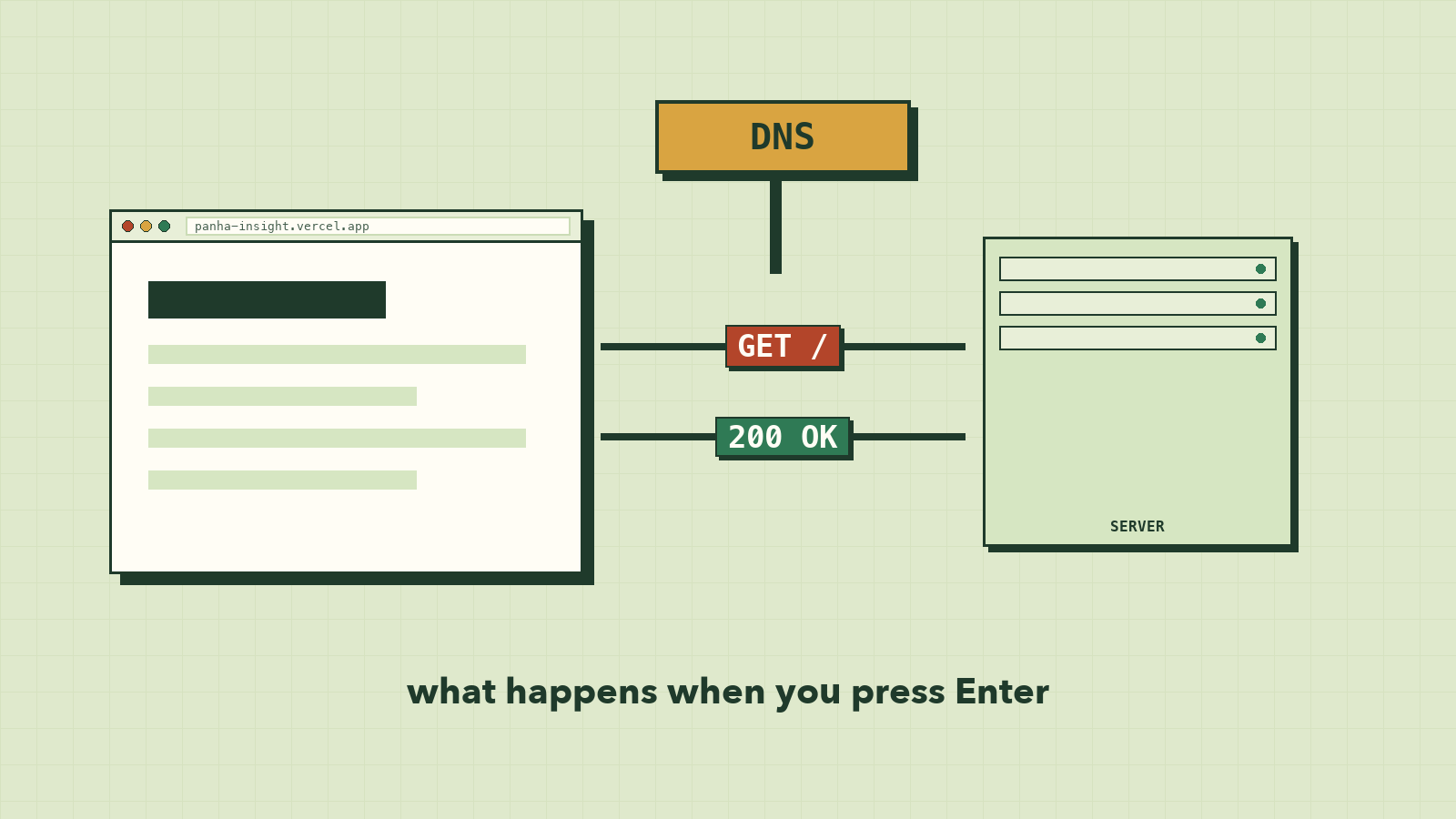
Type panha-insight.vercel.app into your browser and press Enter. Less than a second later, a page appears. It feels like the page was always there, sitting inside your laptop, waiting.
It wasn't. In that second your browser found a computer it had never heard of, opened a private line to it, asked for one file, got it back, and turned a wall of text into the colors and buttons you see. Every website you will ever build goes through those same steps.
This lesson walks through them, one at a time. Once you can picture them, a lot of things that feel like magic (slow sites, broken pages, "it works on my machine") start to make sense.
Two computers, one conversation
The internet is the network: cables under the sea, fiber in the street, cell towers, Wi-Fi in your room. It carries data between devices that agree on shared rules called protocols.
The web is one thing that runs on top of it, and it is a conversation between two kinds of programs:
- The client asks. Usually that's your browser, on a laptop or phone.
- The server answers. It's a program on a computer somewhere that waits for requests and sends back pages, images, or data.
That's the whole model. Your browser never "visits" a website the way you visit a shop. It sends a message and gets one back. Everything else in this lesson is about how that message finds its way and what's inside it.
The journey of one request
Here's the full trip, start to finish. Watch it once, then we'll slow down each step.
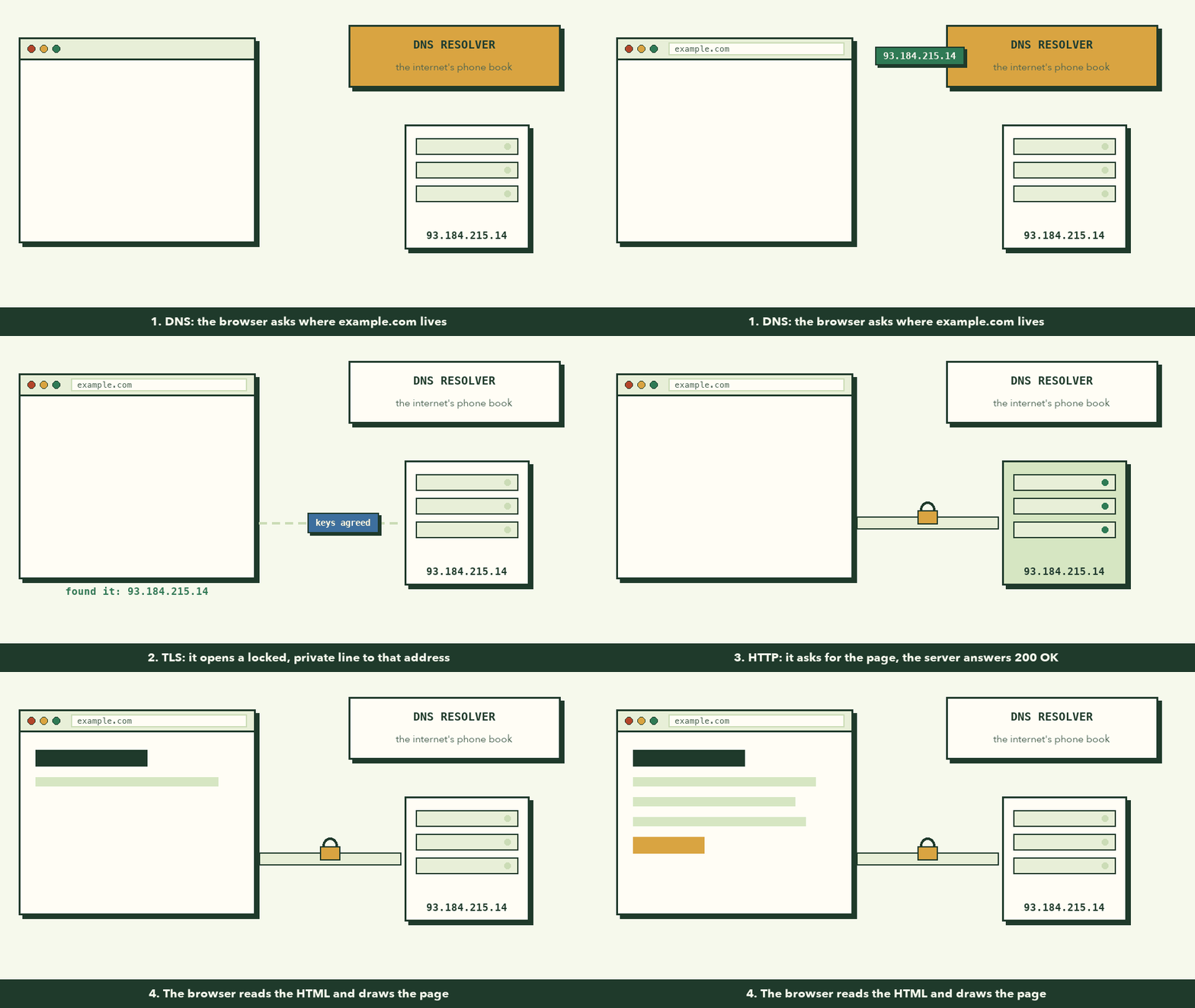
Step 1: DNS finds the address
Computers on the internet find each other by IP address, a number like 93.184.215.14. Nobody wants to memorize those, so we use names like example.com instead.
DNS (the Domain Name System) is the internet's phone book. Your browser asks a DNS resolver, "where does example.com live?", and gets an IP address back.
Two details worth knowing:
- The answer is often cached. If you visited the site recently, your device or router may already know the address and skip the question.
- Big sites return different addresses in different places, so a user in Phnom Penh and one in Paris may reach different servers. An IP you see in an example today may not be the same tomorrow.
Step 2: TLS locks the line
Most sites use HTTPS, and the S stands for secure. Before any page is sent, the browser and server do a short TLS handshake:
- The browser says hello and lists the encryption it supports.
- The server sends back a certificate, a kind of ID card that proves it really owns
example.com. - They agree on keys, and from then on everything between them is encrypted.
That's the padlock in your address bar. It means people on the same café Wi-Fi can see that you talked to the site, but not what you said.
Step 3: HTTP asks for the page
Now the browser sends the actual question. It's plain text, and it looks like this:
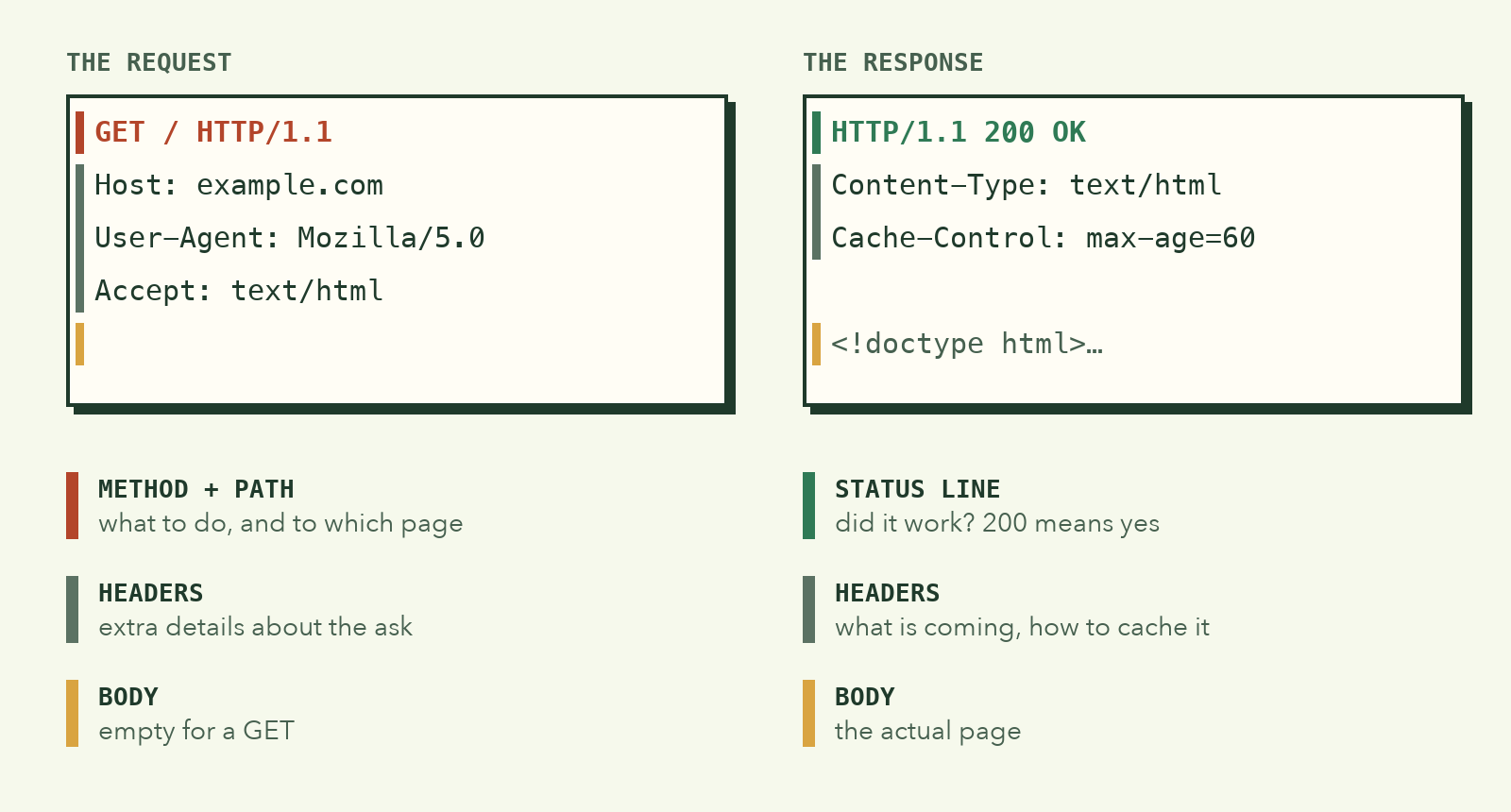
The first line is the important one. GET / means "give me the page at the root of this site." The lines under it are headers: extra details like which site you mean (Host), what browser you're using, and what kinds of files you can read.
The server answers with a status code first, then its own headers, then the page itself:
| Status | What it means |
|---|---|
200 OK |
It worked. Here's your page. |
304 Not Modified |
Nothing changed. Use the copy you already have. |
404 Not Found |
There's nothing at that address. |
500 Internal Server Error |
The server broke while trying to answer. |
Notice that the first HTML file is rarely the end. It mentions stylesheets, scripts, fonts, and images, and the browser goes back for each of them. A typical page makes dozens of requests before it's done.
Step 4: The browser draws the page
What came back is just text. Turning it into something you can see is the browser's real job, and it happens in stages:
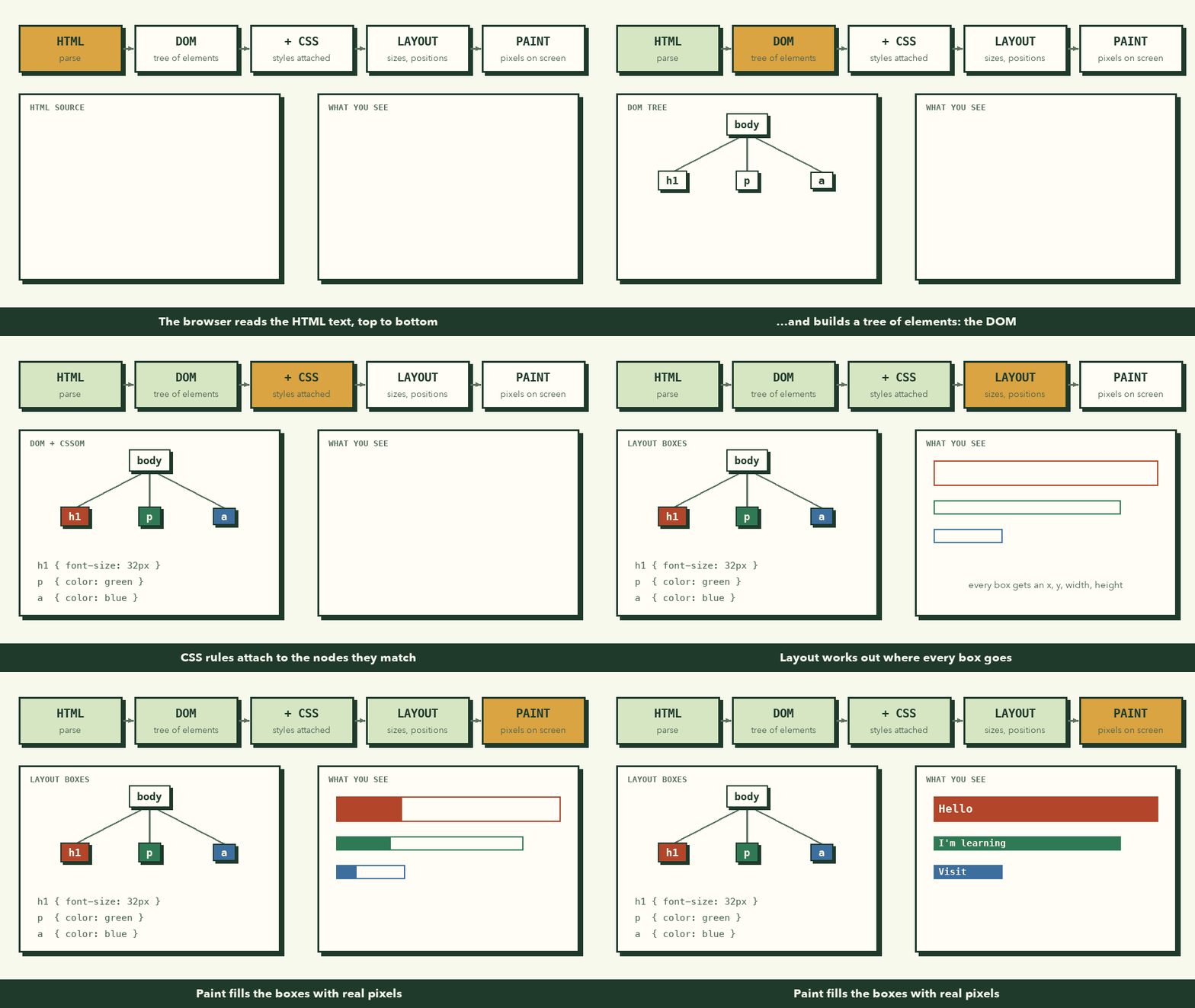
- Parse HTML into the DOM. The browser reads the HTML top to bottom and builds a tree of elements, the Document Object Model.
- Attach CSS. It reads the stylesheets and works out which rules apply to which elements.
- Layout. It calculates where every box goes and how big it is.
- Paint. It fills those boxes with text, colors, and images.
JavaScript can change the DOM or the styles at any time, and when it does, the browser repeats some of these steps. That's why a page that does too much work in JavaScript can feel slow even on a fast connection.
Try it: watch a real request
You don't have to take any of this on faith. Your browser will show you every request it makes.
🎯 Hands-on Task (អនុវត្តផ្ទាល់)
- Open any website in Chrome, Edge, Firefox, or Safari.
- Open Developer Tools:
Cmd + Option + Ion macOS,Ctrl + Shift + Ion Windows or Linux.- Click the Network tab and reload the page.
- Filter by Doc (or Document) to find the page itself.
- Click that request and find:
- the URL and method (probably
GET);- the status (
200, or304if it came from cache);- the request and response headers;
- the HTML in the Response or Preview tab.
You're done when you can point at one request and say, out loud, what the browser asked for and what the server sent back.
If something looks different
- The Network tab is empty. It only records while it's open. Keep it open and reload.
- The status isn't 200. A
301or302is a redirect, and a304is a cache hit. Neither is an error. - The tabs have other names. Every browser lays these panels out a little differently. Look for Network, Headers, and Response.
What to remember
- The web is a conversation: a client asks, a server answers.
- DNS turns a name into an address. TLS locks the line. HTTP carries the question and the answer.
- A status code tells you whether it worked before you read anything else.
- The browser turns HTML and CSS into a DOM, then layout, then paint.
Next, we'll leave the wires and look at the people: What Web Developers Actually Do.