The HTML Skeleton
Before anything looks good, it has to make sense. Write the whole page in plain HTML: a header, one main grid, and ten sections that say what they are. It will look terrible, and that's exactly right.
A house gets its frame before its paint. You can walk through a framed house and know where the kitchen is, even though there are no walls yet.
HTML is the frame. In this lesson you'll write every piece of the page, the whole thing, with no styling at all. When you open it in a browser it'll be a long, ugly column of text and giant images. That's not a mistake. It's proof that the content and its structure exist on their own, before any CSS.
The project folder
Make a folder called portfolio with this inside:
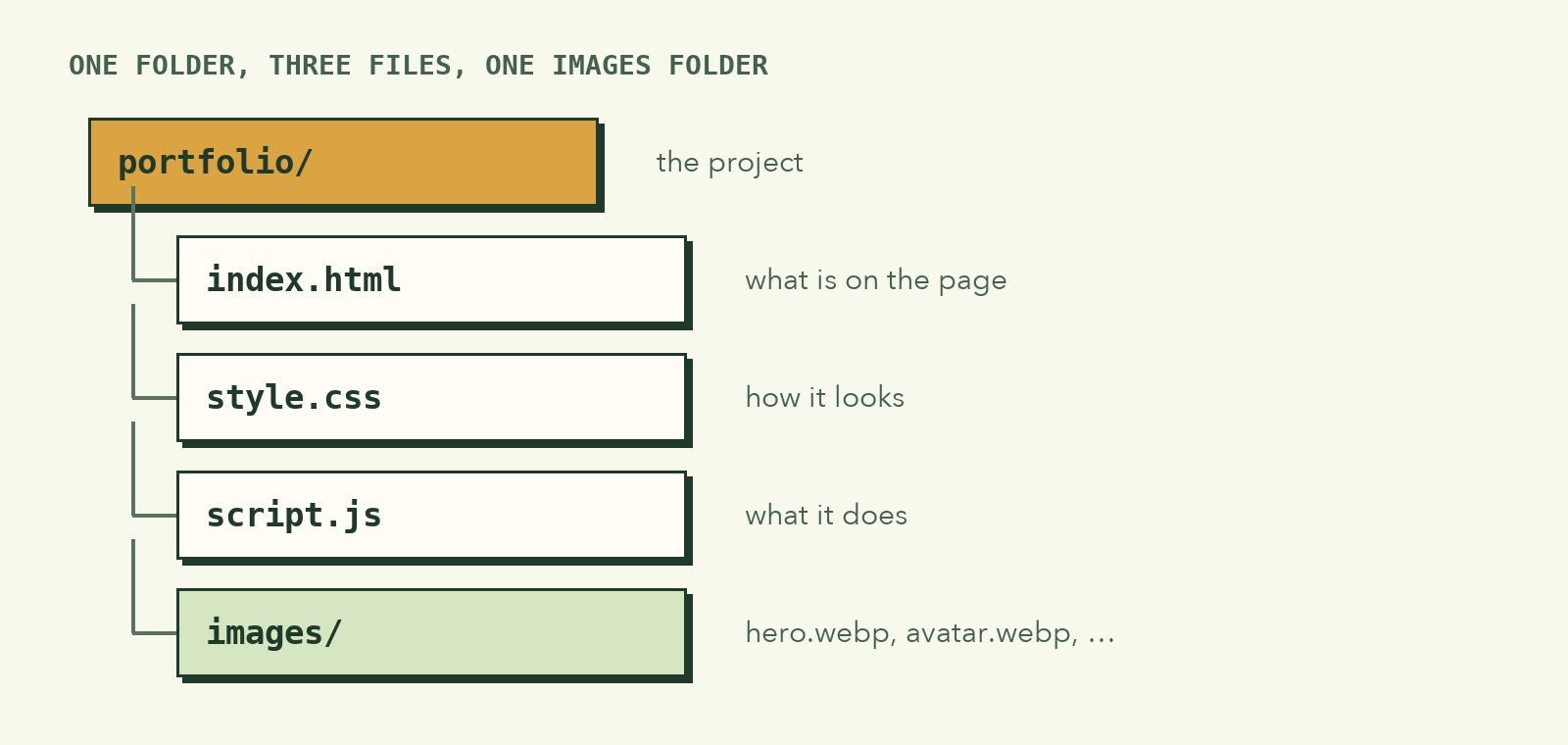
index.htmlholds the content.style.cssholds the look. It stays empty until the next lesson.script.jsholds the behaviour. It stays empty until lesson 8.images/holds the pictures. Name them in lowercase with no spaces:hero.webp,avatar.webp,sticker.webp,cat-ver.webp,hoodie-ver.webp,smool-ver.webp.
Why
.webp? It's a modern image format that's usually several times smaller than PNG at the same quality. The hero image here went from 700 KB as a PNG to 63 KB as WebP. Every major browser supports it.
The head
The <head> is information about the page. Ours does three jobs: basic setup, loading the font, and linking the stylesheet.
<!doctype html>
<html lang="en">
  <head>
    <meta charset="UTF-8">
    <meta name="viewport" content="width=device-width, initial-scale=1.0">
    <title>Gawr Gura · Profile</title>
    <meta name="description" content="A bento-style profile page.">

    <link rel="preconnect" href="https://fonts.googleapis.com">
    <link rel="preconnect" href="https://fonts.gstatic.com" crossorigin>
    <link href="https://fonts.googleapis.com/css2?family=Poppins:wght@400;500;600;700&display=swap" rel="stylesheet">

    <link rel="stylesheet" href="style.css">
  </head>
The new parts:
viewporttells phones to use their real width instead of pretending to be a desktop. Without it, your phone layout in lesson 10 won't work.descriptionis the short text search engines and link previews show.- The three font lines load Poppins from Google Fonts. The two
preconnectlines let the browser start connecting to Google early, so the font arrives sooner.display=swapshows a fallback font immediately and swaps Poppins in when it's ready, so text never stays invisible.
The body: one header, one grid
Here's the shape of the whole page:
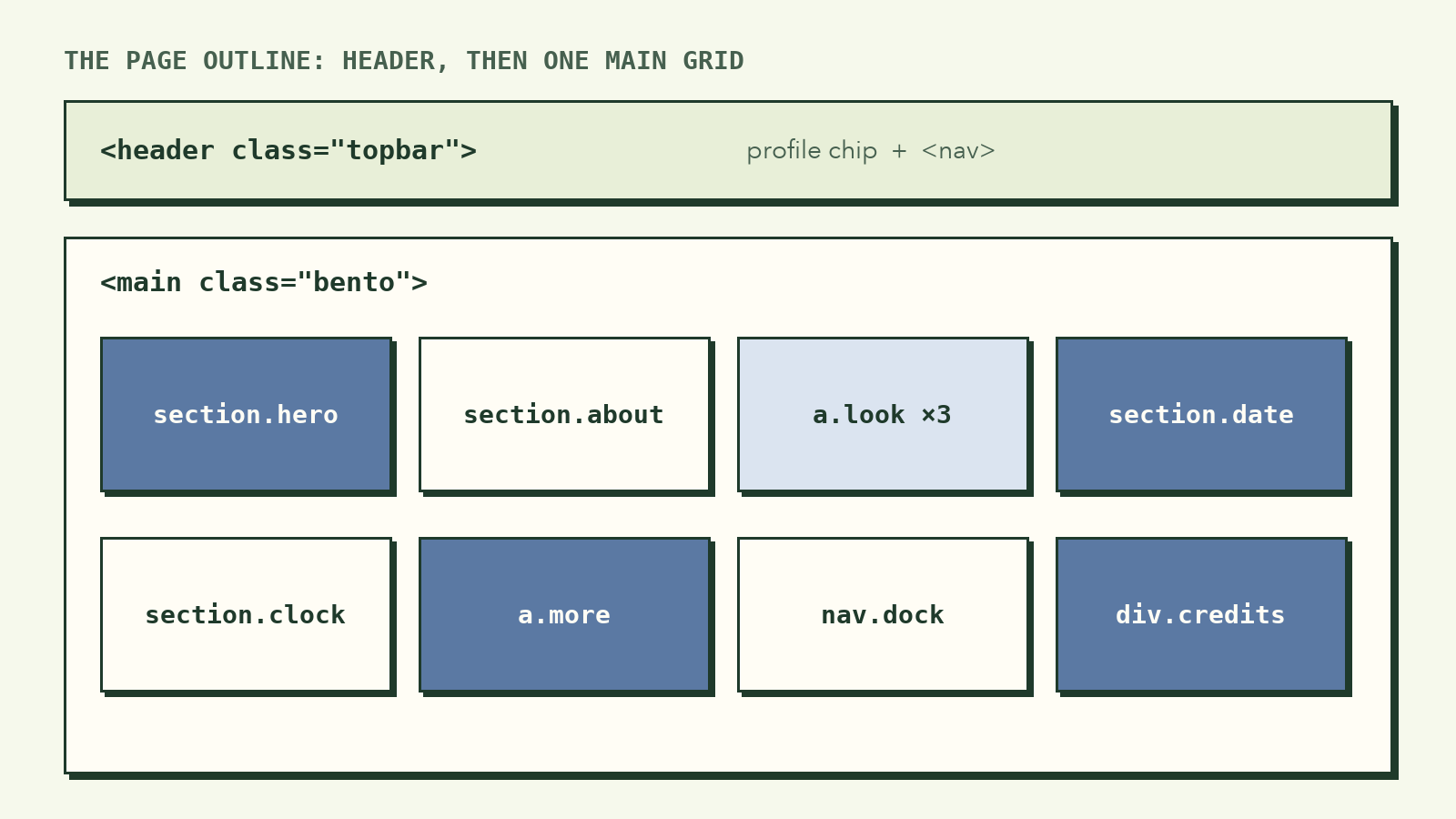
Let's write it piece by piece.
The faded backdrop
<body>
  <img class="backdrop" src="images/hero.webp" alt="" aria-hidden="true">
This is the big, faint copy of the portrait behind everything. It's pure decoration, so it gets alt="", an empty alt. That's not laziness: an empty alt tells screen readers "skip this, it carries no information." A missing alt would make them read the file name aloud.
The top bar
<header class="topbar">
  <a class="profile-chip" href="#top">
    <span class="avatar">
      <img src="images/avatar.webp" alt="" width="44" height="44">
      <span class="online-dot" aria-label="Online"></span>
    </span>
    <span class="profile-name">
      <strong>Gawr Gura</strong>
      <small>Hololive EN</small>
    </span>
  </a>

  <nav aria-label="Main">
    <a href="#top">Home</a>
    <a href="#about" aria-current="page">About</a>
    <a href="#gallery">Gallery</a>
  </nav>
</header>
- The avatar's alt is empty too, because the name right next to it already says who it is. Repeating "Gawr Gura" would make a screen reader say it twice.
widthandheighton an image let the browser save the right amount of space before it loads, so the page doesn't jump.aria-current="page"marks which link is the current one. In lesson 4 we'll style it as the blue pill, so the same attribute does two jobs: it tells assistive tech and hooks the styling.
The grid and its cards
Everything else lives in one <main>, which will become the grid:
<main id="top" class="bento">
  <section class="card hero" aria-roledescription="carousel" aria-label="Introduction">
    <div class="hero-slides">
      <article class="slide is-active">
        <p class="kana" lang="ja">がうる・ぐら</p>
        <h1>Hi, Gawr Gura</h1>
        <p><strong>Welcome!</strong> I'm glad you stopped by. …</p>
      </article>
      <article class="slide"> … </article>
      <article class="slide"> … </article>
    </div>

    <div class="dots" role="group" aria-label="Choose a slide">
      <button class="dot is-active" aria-label="Slide 1" aria-current="true"></button>
      <button class="dot" aria-label="Slide 2"></button>
      <button class="dot" aria-label="Slide 3"></button>
    </div>

    <img class="hero-portrait" src="images/hero.webp" alt="Gawr Gura hugging a big shark plush">
  </section>
Choices worth noticing:
- Every card has two classes:
card(the shared look) and its own name (hero,about…). You'll see why in lesson 5. - The three slides are all in the HTML. JavaScript doesn't create them; it only decides which one is visible. If JavaScript fails, the content is still there.
- The dots are
<button>s, not<div>s. Buttons can be reached with Tab and pressed with Enter for free. lang="ja"on the Japanese text helps screen readers pronounce it and lets the browser pick the right font.
The image cards are links, so they're <a> elements wrapping an image and a label:
<a id="gallery" class="card look look-cat" href="images/cat-ver.webp">
  <img src="images/cat-ver.webp" alt="Gura with cat ears and overalls">
  <span class="look-label">Cat Ver</span>
</a>
The clock card gives JavaScript empty spots to fill, each with an id:
<section class="card clock" aria-label="Current time">
<p class="clock-time"><span id="time">--:--</span><small id="ampm"></small></p>
<p class="clock-day" id="weekday">Today</p>
<p class="clock-date" id="date"> </p>
</section>
The --:-- placeholder is what someone sees for the split second before the script runs, or forever if it doesn't.
The full file, with the About card, birthday card, links dock and credits, is in the live demo. Right-click it and choose View Page Source, then copy the rest of the <main> into yours. At the very end of the body, link the script:
    <script src="script.js"></script>
  </body>
</html>
Checkpoint: beautifully ugly
Open index.html in your browser. It should look something like this:
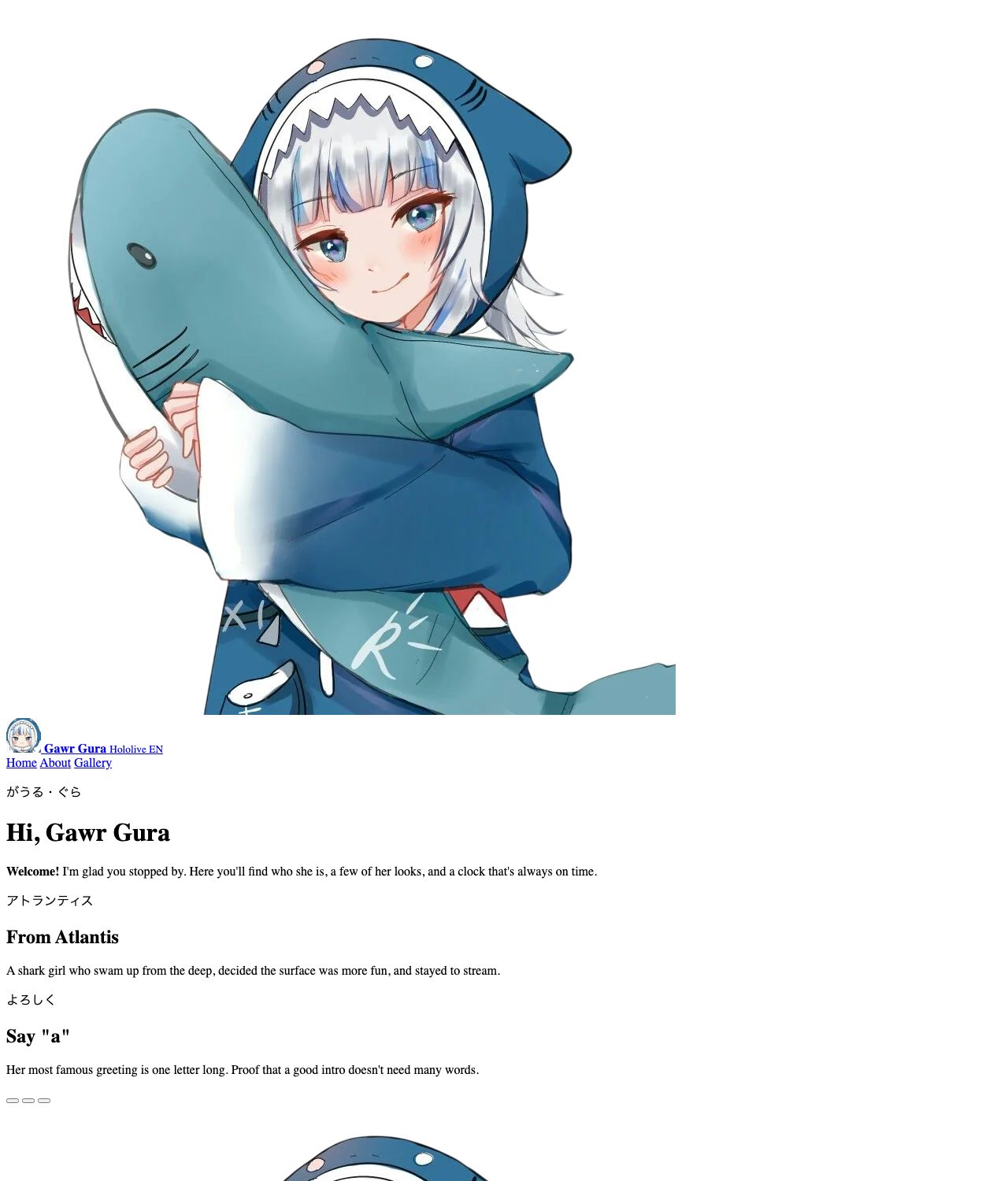
Everything is in the right order, every image has a description, every link works, and all three slides are readable one after another. A screen reader or a search engine would already understand this page. The next lessons are only about how it looks.
If something looks wrong
- An image is broken. Check the file name letter by letter, including the
.webp.Hero.webpandhero.webpare different files on most web servers. - The Japanese text shows as boxes. Make sure
<meta charset="UTF-8">is the first thing in your head. - You see your code instead of the page. The file is probably named
index.html.txt. Show file extensions and rename it.
What to remember
- Structure first. A page should make sense with no CSS at all.
- Decorative images get
alt="". Meaningful ones get a real description. - Use the element that matches the job:
<button>for buttons,<a>for links,<nav>for navigation. - Give JavaScript empty spots with ids to fill, and sensible placeholders.
Next, we give the page its colors and its background: Design Tokens and the Page Background.