The Top Bar with Flexbox
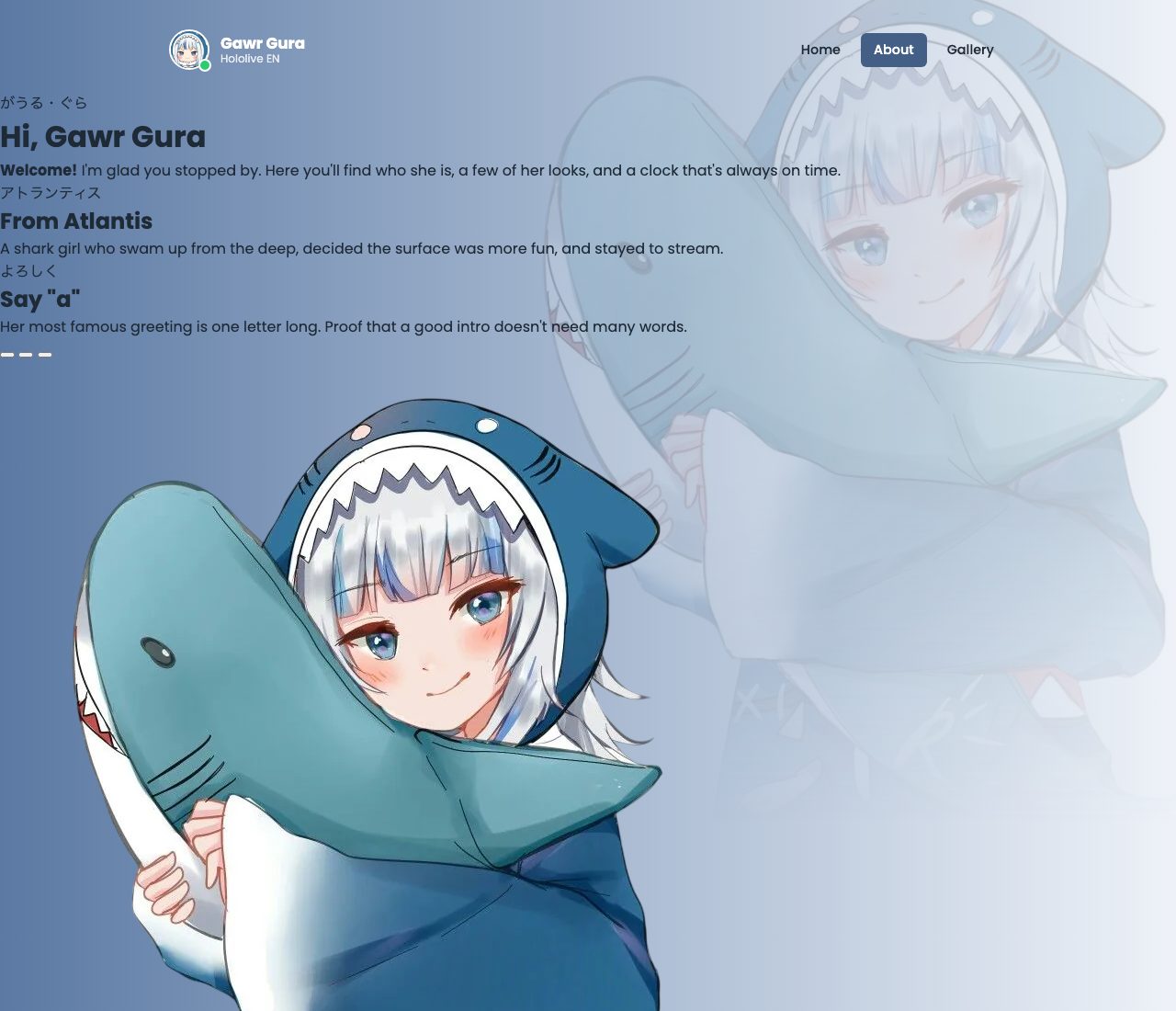
Two things on one line, pushed to opposite edges, perfectly centered vertically. It sounds simple, and for years it wasn't. Flexbox makes it three lines of CSS. Build the top bar: a round avatar with an online dot, a name, and links with an active pill.
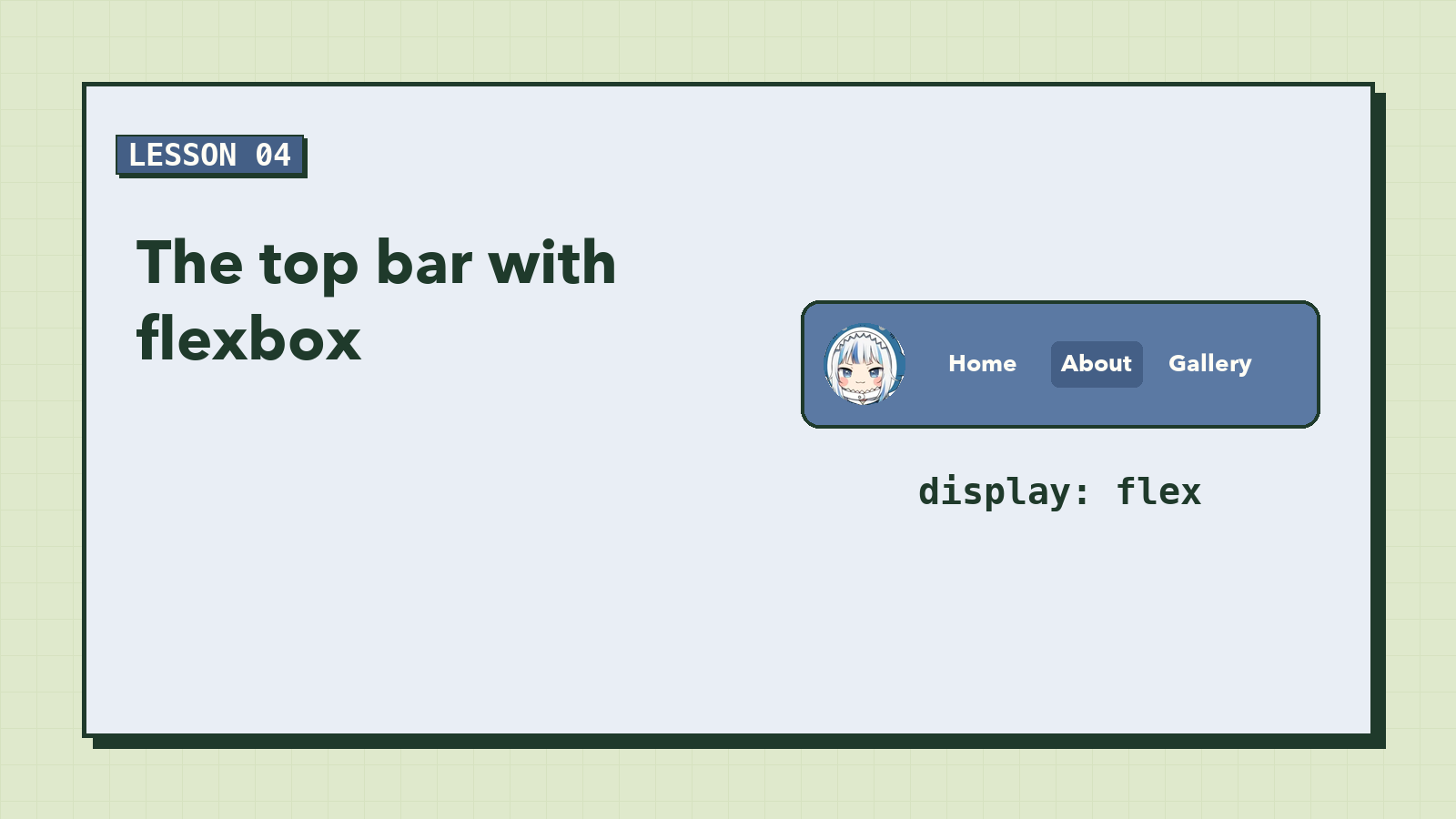
Look at the top of almost any website. There's a logo on the left and links on the right, and both sit exactly in the middle of the bar's height. It's so common you never notice it.
Getting that right used to take floats, clearfixes, and line-height tricks that broke as soon as the text changed size. Today it takes flexbox, and once you understand three properties, you'll use it every day.
Flexbox in one picture
Add display: flex to a container, and its direct children line up in a row. Then two properties decide where they go:
justify-contentplaces them along the row (left to right).align-itemsplaces them across it (top to bottom).
Here's our top bar trying three values of justify-content:
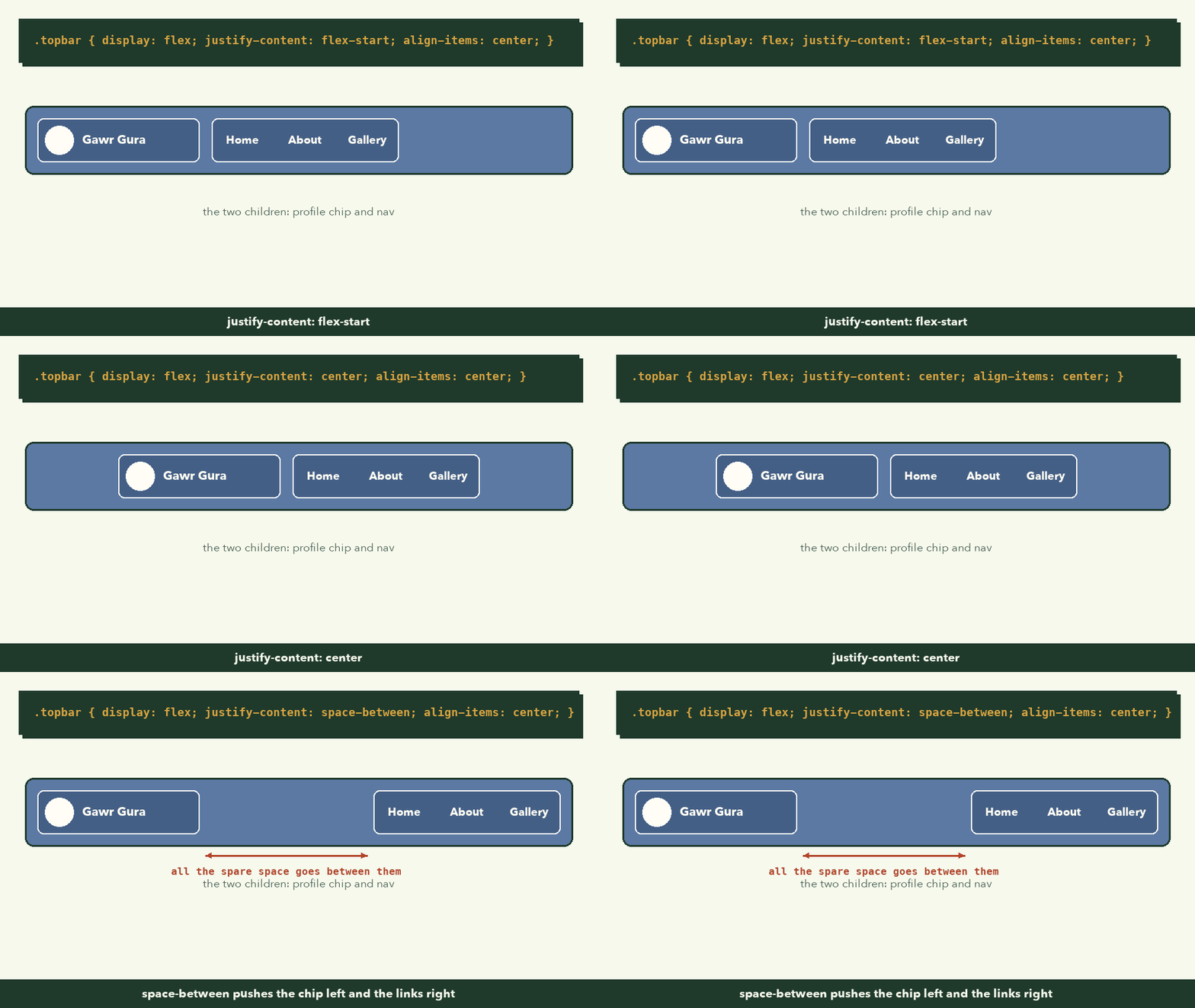
space-between is the one we want: the first child hugs the left edge, the last hugs the right, and all the spare space goes between them.
The bar
/* ---------- 3. Top bar ---------- */
.topbar {
  max-width: 960px;
  margin: 0 auto;
  padding: 32px 24px 24px;
  display: flex;
  align-items: center;
  justify-content: space-between;
  gap: 24px;
}
max-width: 960px; margin: 0 autokeeps the bar the same width as the grid below and centers it.autoleft and right margins split the leftover space equally.align-items: centerlines both children up on their vertical middles, so the 44px avatar and the shorter links sit on the same center line.gap: 24pxguarantees at least 24px between them, even on a narrow screen wherespace-betweenhas no spare room left.
The profile chip
The chip is itself a flex container. That's normal: flexbox inside flexbox is how most layouts are built.
.profile-chip {
  display: flex;
  align-items: center;
  gap: 12px;
  text-decoration: none;
  color: var(--paper);
}

.profile-name {
  display: flex;
  flex-direction: column;
  line-height: 1.2;
}

.profile-name strong {
  font-size: 1.05rem;
}

.profile-name small {
  font-size: 0.75rem;
  opacity: 0.85;
}
.profile-name uses flex-direction: column to stack the name above "Hololive EN". Flexbox works in either direction; column just turns the row on its side.
The round avatar and its online dot
.avatar {
  position: relative;
  flex-shrink: 0;
}

.avatar img {
  width: 44px;
  height: 44px;
  border-radius: 50%;
  border: 2px solid var(--paper);
  object-fit: cover;
}

.online-dot {
  position: absolute;
  right: -2px;
  bottom: -2px;
  width: 14px;
  height: 14px;
  border-radius: 50%;
  background: var(--online);
  border: 2px solid var(--paper);
}
Three ideas in a few lines:
border-radius: 50%turns any square into a circle.object-fit: covermakes the image fill the circle without stretching, even if the original isn't square.- The green dot uses a pair you'll meet again and again: a parent with
position: relativeand a child withposition: absolute. The child is taken out of the normal flow and placed relative to the parent's edges.right: -2px; bottom: -2pxtucks it onto the bottom-right curve of the avatar.
flex-shrink: 0 stops flexbox from squashing the avatar when space gets tight. Without it, a long name could make the avatar shrink into an oval.
The links and the active pill
.topbar nav {
  display: flex;
  gap: 8px;
}

.topbar nav a {
  padding: 8px 14px;
  border-radius: 6px;
  font-size: 0.9rem;
  font-weight: 500;
  text-decoration: none;
}

.topbar nav a[aria-current="page"] {
  background: var(--blue-deep);
  color: var(--paper);
}

.topbar nav a:hover:not([aria-current]) {
  background: rgba(255, 255, 255, 0.35);
}
The interesting selector is a[aria-current="page"], an attribute selector. In lesson 2 we put aria-current="page" on the About link so screen readers would announce "current page". Now the same attribute draws the pill. One source of truth: if you move the attribute, the highlight moves with it, and the two can never disagree.
:hover:not([aria-current]) means "on hover, but not the current link", so the active pill doesn't flicker when you point at it.
Checkpoint
If something looks wrong
- The links are under the name, not to the right.
display: flexis missing on.topbar, or it's on the wrong element. It belongs on the parent of the two things you want in a row. - The green dot is in the corner of the page. The
.avatarwrapper needsposition: relative. Without it,absolutepositions against the nearest positioned ancestor, which might be the whole page. - The avatar is an oval. Add
object-fit: coverand check thatwidthandheightare equal.
What to remember
display: flexputs children in a row.flex-direction: columnstacks them instead.justify-contentspaces along the row;align-itemsaligns across it;gapsets a minimum space.position: relativeon the parent +absoluteon the child pins badges and decorations.- Style states with attributes (
aria-current) so meaning and look stay in sync.
Next, every card finds its place at once: The Bento Grid.