Card Details: Images, Labels, Little Touches
The layout is right; now each card needs to feel finished. Crop images without stretching them, lay readable labels over pictures, align numbers so they don't jiggle, and size icons properly. Small rules, big difference.
There's a moment in every project where the layout is right but the page still looks like a draft. The image is squashed. The white label vanishes against a white background. The clock's digits shuffle sideways every second.
None of these is a big problem. Each takes two or three lines to fix. But together they're the difference between "a student project" and "wait, you made this?" This lesson goes card by card.
The About card
/* ---------- 6. About ---------- */
.about {
  padding: 20px 24px;
  border: 2px solid var(--blue);
  display: flex;
  flex-direction: column;
}

.about-head {
  display: flex;
  align-items: baseline;
  justify-content: space-between;
  padding-bottom: 10px;
  border-bottom: 2px solid var(--blue);
  margin-bottom: 12px;
}

.about-body {
  display: flex;
  align-items: center;
  gap: 12px;
  flex: 1;
  min-height: 0;
}

.about-body img {
  width: 88px;
  height: auto;
  flex-shrink: 0;
}
Two things worth a closer look:
align-items: baselineon the heading row lines up "About Her" and "について" on the bottom of their letters, even though one is much bigger than the other.centerwould make the small text float halfway up the big one.flex: 1; min-height: 0lets the body fill the rest of the card and shrink if the card is short. Withoutmin-height: 0, a flex child refuses to get smaller than its content and spills out of the card.
Image cards: three layers
Each look card is a picture with a label floating over a soft blue fade:
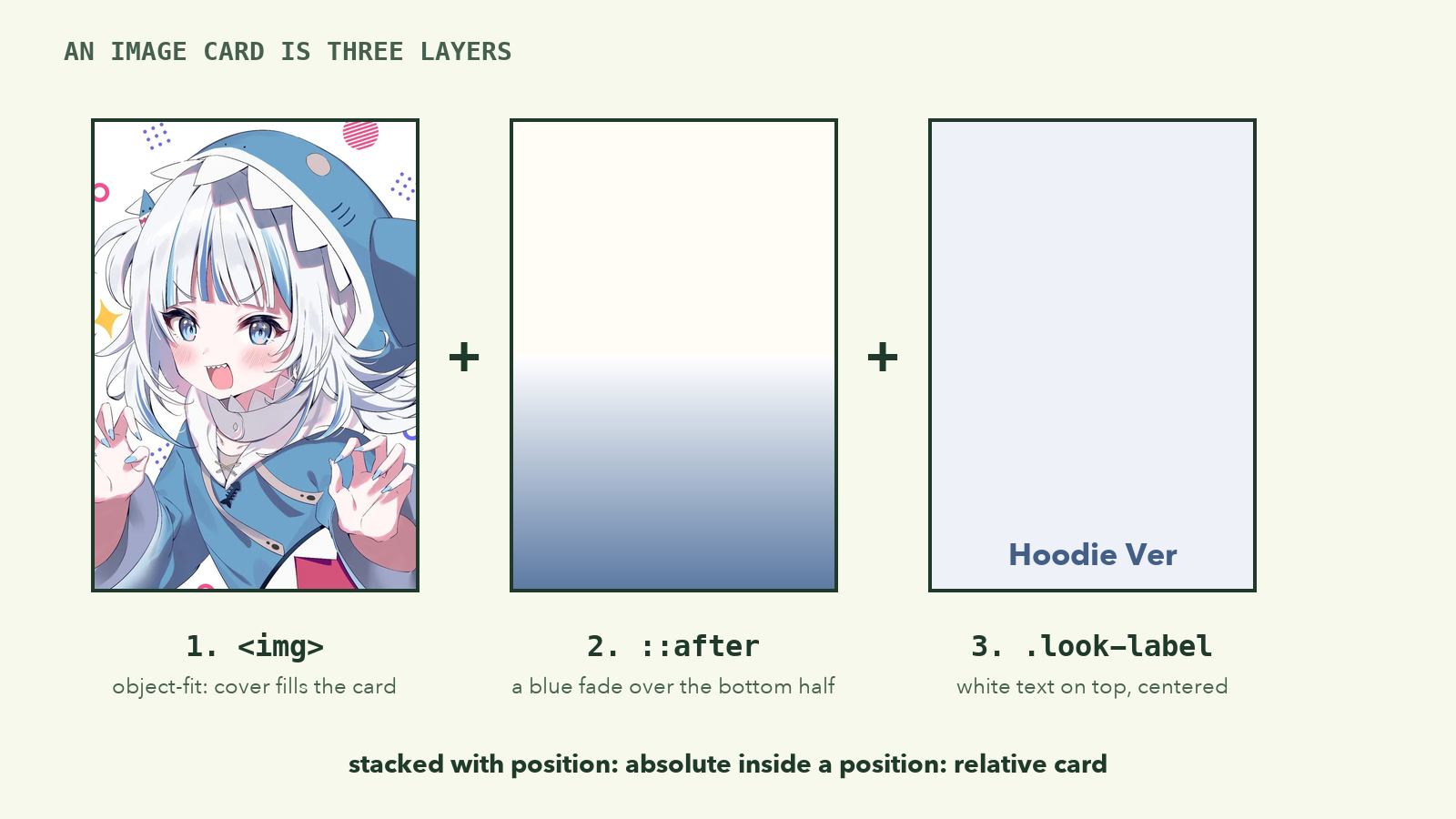
Layer 1: the image, cropped to fit.
.look {
  overflow: hidden;
  text-decoration: none;
  background: var(--blue-soft);
}

.look img {
  width: 100%;
  height: 100%;
  object-fit: cover;
  object-position: top;
  transition: transform 400ms ease;
}
The card is a fixed shape, but the images aren't. A square picture in a tall card has to be cropped, stretched, or letterboxed. object-fit chooses:
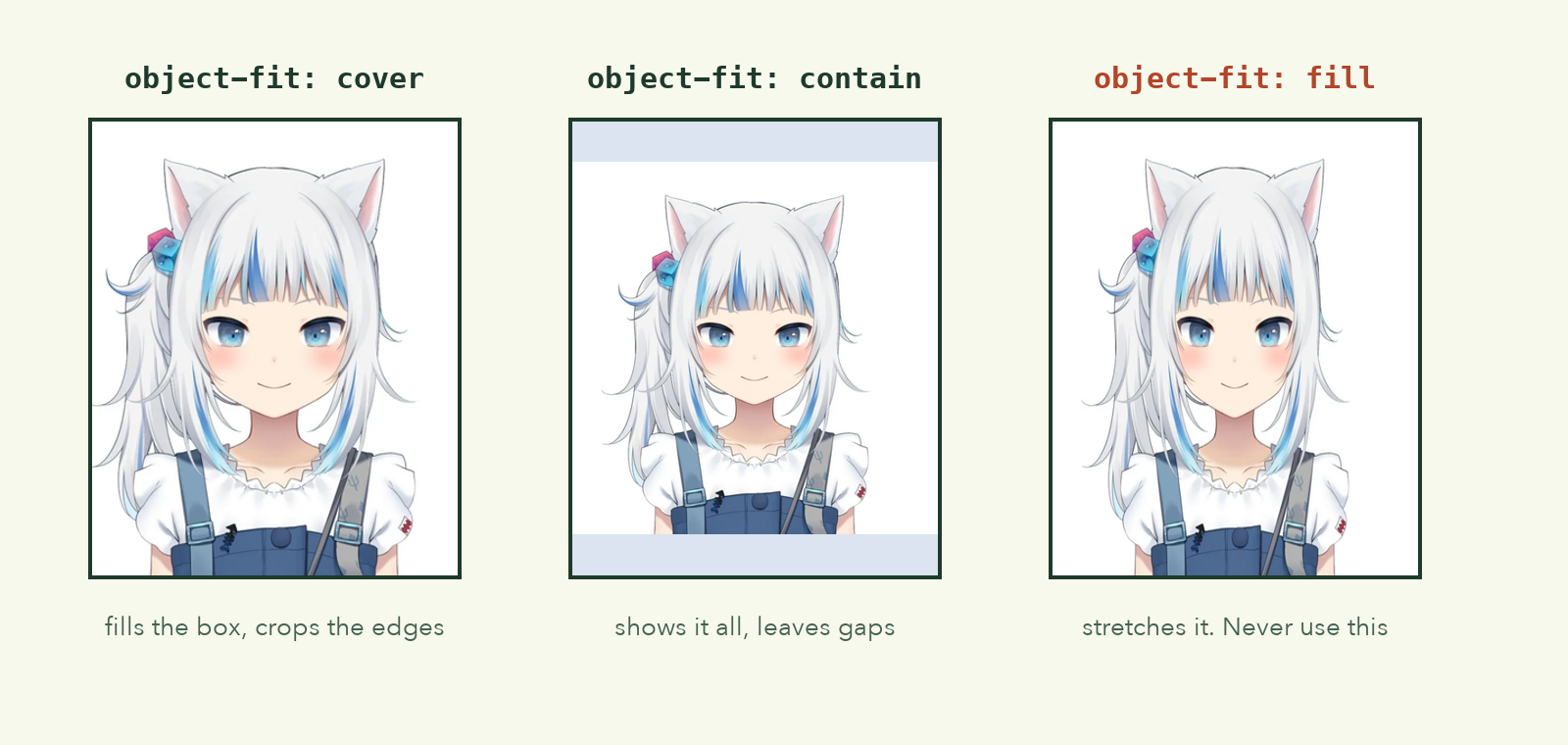
We use cover, plus object-position: top, so if anything gets cropped it's the bottom of the picture, never the character's face. overflow: hidden on the card clips the image to the rounded corners.
Layer 2: the fade.
.look::after {
  content: "";
  position: absolute;
  inset: 50% 0 0;
  background: linear-gradient(to top, var(--blue) 10%, transparent);
}
::after creates an extra, empty element at the end of the card, without touching the HTML. inset: 50% 0 0 is shorthand for top: 50%; right: 0; bottom: 0; left: 0: it covers the bottom half. The gradient goes from solid blue at the bottom to transparent in the middle.
This is the trick to readable text on photos. You can't know what color the image will be behind the label. So you put a color there yourself.
Layer 3: the label.
.look-label {
  position: absolute;
  left: 0;
  right: 0;
  bottom: 14px;
  z-index: 1;
  text-align: center;
  font-size: 0.9rem;
  font-weight: 600;
  color: var(--paper);
}
z-index: 1 lifts the label above the ::after fade. A little hover touch, .look:hover img { transform: scale(1.05); }, zooms the picture slightly when you point at it.
The Smool card is a simple line drawing, so cropping would cut it off. It switches to contain:
.look-smool img {
  object-fit: contain;
  background: var(--paper);
}
Birthday and clock
The date card pins its cake and countdown to corners, using the position: relative every card already has:
.date-countdown {
  position: absolute;
  right: 16px;
  bottom: 16px;
  font-size: 0.75rem;
  opacity: 0.9;
}

.date-cake {
  position: absolute;
  top: 14px;
  right: 16px;
  font-size: 2rem;
}
The clock gets one small rule with a big effect:
.clock-time {
  font-size: 2.2rem;
  font-weight: 700;
  color: var(--blue-deep);
  line-height: 1;
  font-variant-numeric: tabular-nums; /* digits don't jiggle as they change */
}
In most fonts a "1" is narrower than an "8". When the clock ticks from 8:11 to 8:18, the whole time shifts sideways. tabular-nums switches to digits that are all the same width, the way they're printed in tables. The clock stays perfectly still as it changes. You'll see it working in the next lesson.
View More, the dock and the credits
The View More card uses flexbox in a column to push the text to the top and the arrow to the bottom:
.more {
  display: flex;
  flex-direction: column;
  justify-content: space-between;
  /* …colors and font… */
}

.more-arrow {
  display: grid;
  place-items: center;
  width: 30px;
  height: 30px;
  border-radius: 50%;
  background: var(--paper);
  color: var(--blue);
}
display: grid; place-items: center is the shortest way in CSS to center one thing inside another, horizontally and vertically.
The dock finally fixes the giant YouTube icon:
.dock a {
  display: grid;
  place-items: center;
  width: 44px;
  height: 44px;
  border-radius: 50%;
  color: var(--blue-deep);
}

.dock svg {
  width: 22px;
  height: 22px;
  fill: currentColor;
}
- The link is 44 × 44px, the minimum comfortable tap size. The icon inside is 22px. Same idea as the slider dots: a big target, a small visual.
fill: currentColorpaints the SVG with the link's text color. Change the link'scolorand the icon follows, including on hover.
Finally, the credits panel floats above its bar:
.credits-panel {
  position: absolute;
  right: 0;
  bottom: calc(100% + 12px);
  width: min(340px, 90vw);
  /* …white card styles… */
  z-index: 10;
}
bottom: calc(100% + 12px) places the panel's bottom edge 12px above the top of the bar, so it opens upwards. The panel starts with the HTML hidden attribute, so it's invisible until lesson 9's JavaScript opens it.
Checkpoint
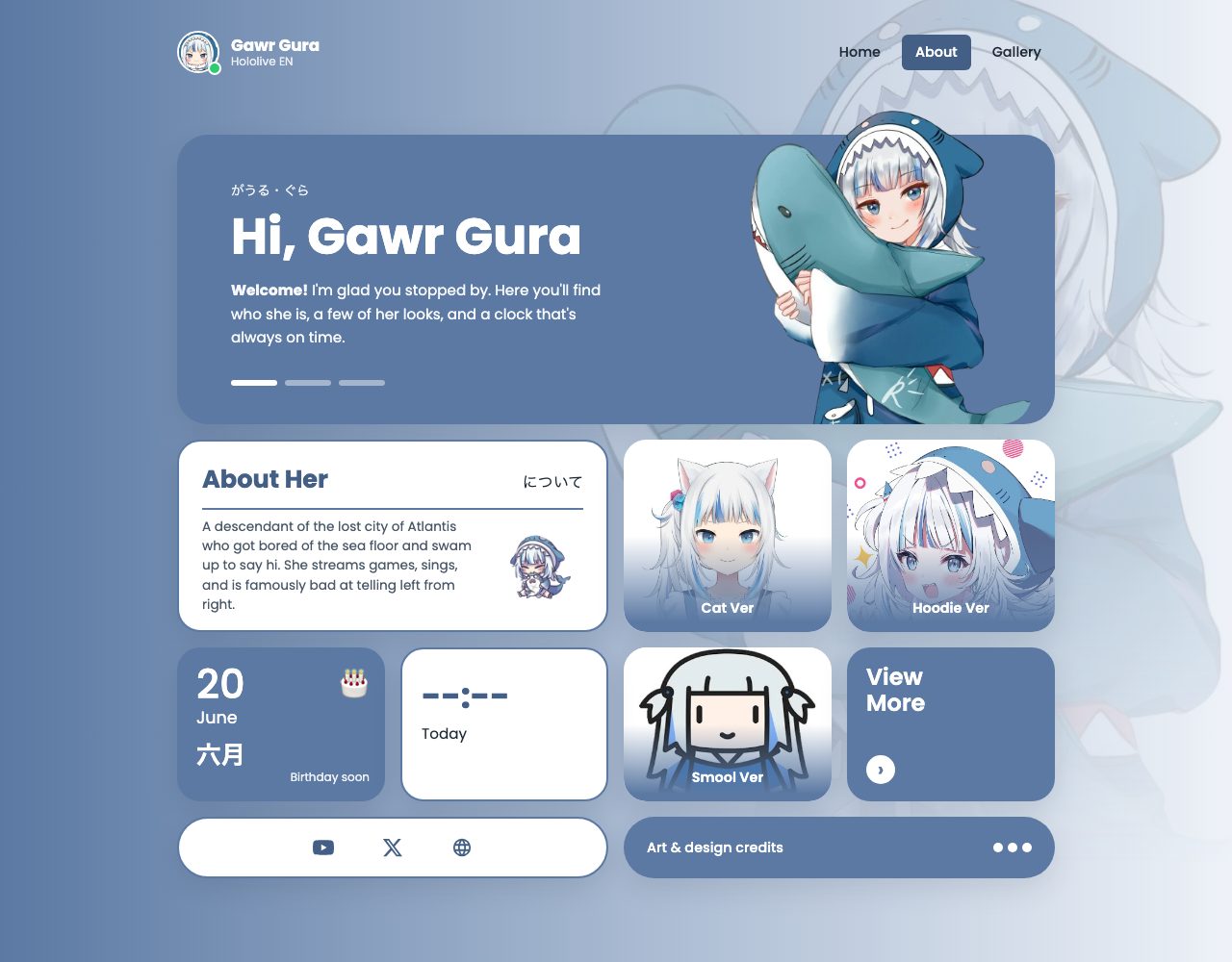
The page now looks like the design. The only giveaway is the clock: it still says --:--, and the birthday card says "Birthday soon". Time to bring them to life.
If something looks wrong
- A label is invisible. Check it has
z-index: 1, and that.lookhasposition: relative(from.card). - Images are stretched. You need
object-fit: coverand bothwidth: 100%andheight: 100%on the image. - The images poke out of the rounded corners. Add
overflow: hiddento.look.
What to remember
object-fit: covercrops images to any shape;object-positionpicks which part survives.- To make text readable on a photo, add your own background under it with a gradient pseudo-element.
tabular-numsstops changing numbers from jiggling.place-items: centercenters anything in one line.- Size the tap target and the visual separately;
fill: currentColormakes icons follow the text color.
Next, the first JavaScript: A Live Clock and a Countdown.