JavaScript: A Live Clock and a Countdown
A static page shows what was true when you wrote it. A few lines of JavaScript show what's true right now: the current time, ticking every second, and how many days are left until her birthday.
HTML and CSS describe a page that stays the same until you edit the file. That's perfect for a heading, and useless for a clock. A clock has to be different every minute, on every visitor's screen, in their own time zone.
That's the line between a document and an app, and JavaScript is how you cross it. This lesson writes two small features: a clock that updates itself, and a countdown that knows what today is. Together they use the three ideas behind almost every bit of front-end JavaScript: find an element, compute a value, write it into the page.
If variables, if and functions feel shaky, Programming Foundations covers them first.
Step 1: Find the spots to fill
In lesson 2 we left empty spots in the clock card, each with an id:
<p class="clock-time"><span id="time">--:--</span><small id="ampm"></small></p>
<p class="clock-day" id="weekday">Today</p>
<p class="clock-date" id="date"> </p>
At the top of script.js, grab them once:
const timeEl = document.querySelector("#time");
const ampmEl = document.querySelector("#ampm");
const weekdayEl = document.querySelector("#weekday");
const dateEl = document.querySelector("#date");
document.querySelector takes the same selectors you write in CSS (#time means "the element with id time") and hands back that element. We store each one in a const with an El ending, a common habit that makes it obvious the variable holds a page element, not text.
Step 2: Read the time
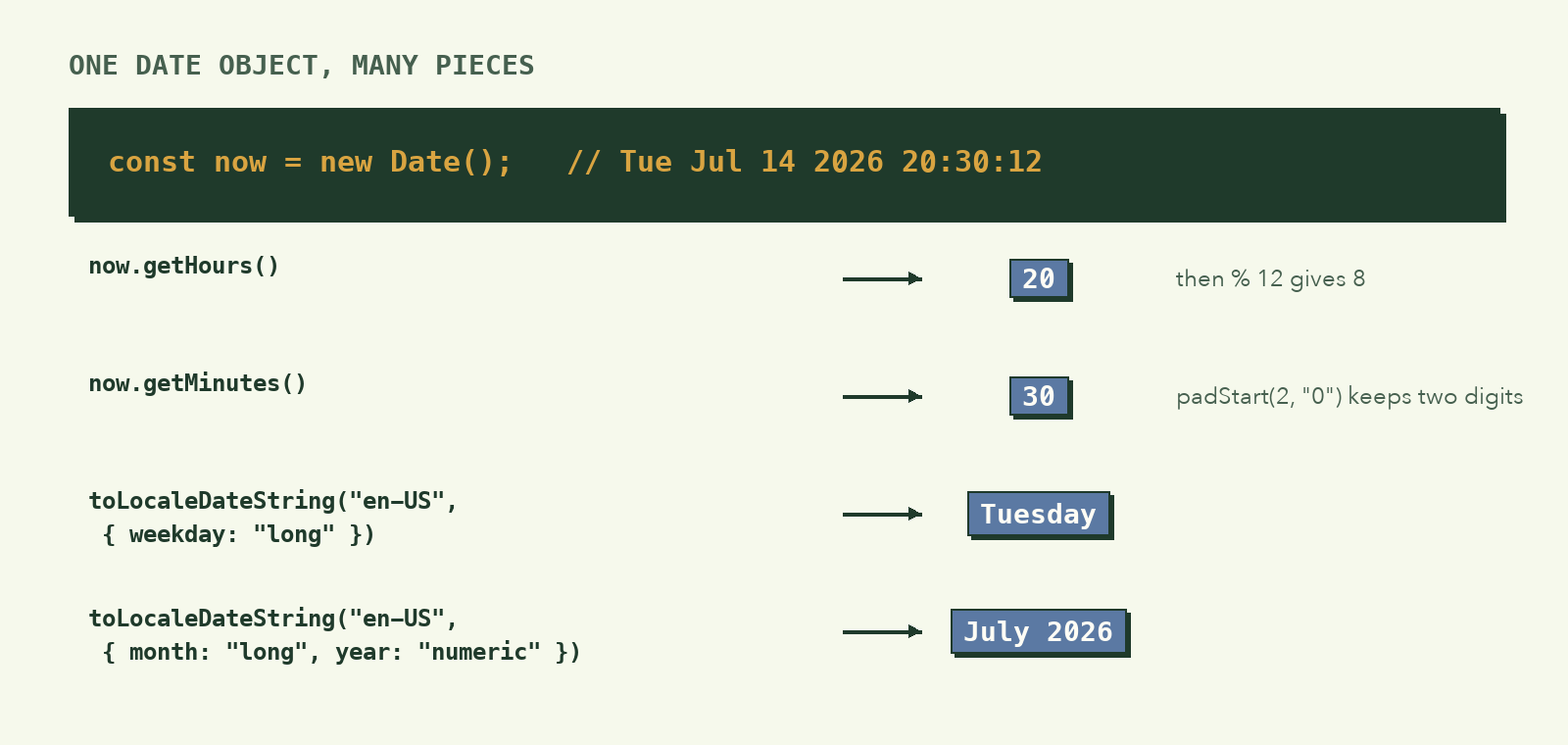
const now = new Date();
new Date() creates a snapshot of this exact moment, in the visitor's own time zone. One object holds everything: year, month, day, hours, minutes, seconds. You ask it for the pieces you need:
Step 3: Format it the way the design shows
The reference shows 8:30 PM, not 20:30. That takes three small conversions:
function updateClock() {
  const now = new Date();

  let hours = now.getHours();
  const minutes = String(now.getMinutes()).padStart(2, "0");
  const ampm = hours >= 12 ? "PM" : "AM";
  hours = hours % 12 || 12; // 0 becomes 12, 13 becomes 1

  timeEl.textContent = `${hours}:${minutes}`;
  ampmEl.textContent = ampm;
  weekdayEl.textContent = now.toLocaleDateString("en-US", { weekday: "long" });
  dateEl.textContent = now.toLocaleDateString("en-US", { month: "long", year: "numeric" });
}
Line by line:
padStart(2, "0")turns5into"05", so 8:05 doesn't show as 8:5. It only works on strings, which is why we wrap the number inString()first.hours >= 12 ? "PM" : "AM"is the ternary operator: a one-lineif/elsethat produces a value. Read it as "is it 12 or later? Then PM, otherwise AM."hours % 12 || 12:%gives the remainder after dividing by 12, so 13 becomes 1 and 20 becomes 8. But 12 % 12 and 0 % 12 are both0, and there's no "0 o'clock".|| 12says "if that's 0, use 12 instead."textContentreplaces the text inside an element. It's the safe way to put text on the page, because it never treats the text as HTML.toLocaleDateStringformats dates in a given language and style. Change"en-US"to"km-KH"and the weekday comes out in Khmer, with no translation work on your part.
Step 4: Keep it ticking
updateClock(); // show the time right away...
setInterval(updateClock, 1000); // ...then refresh it every second
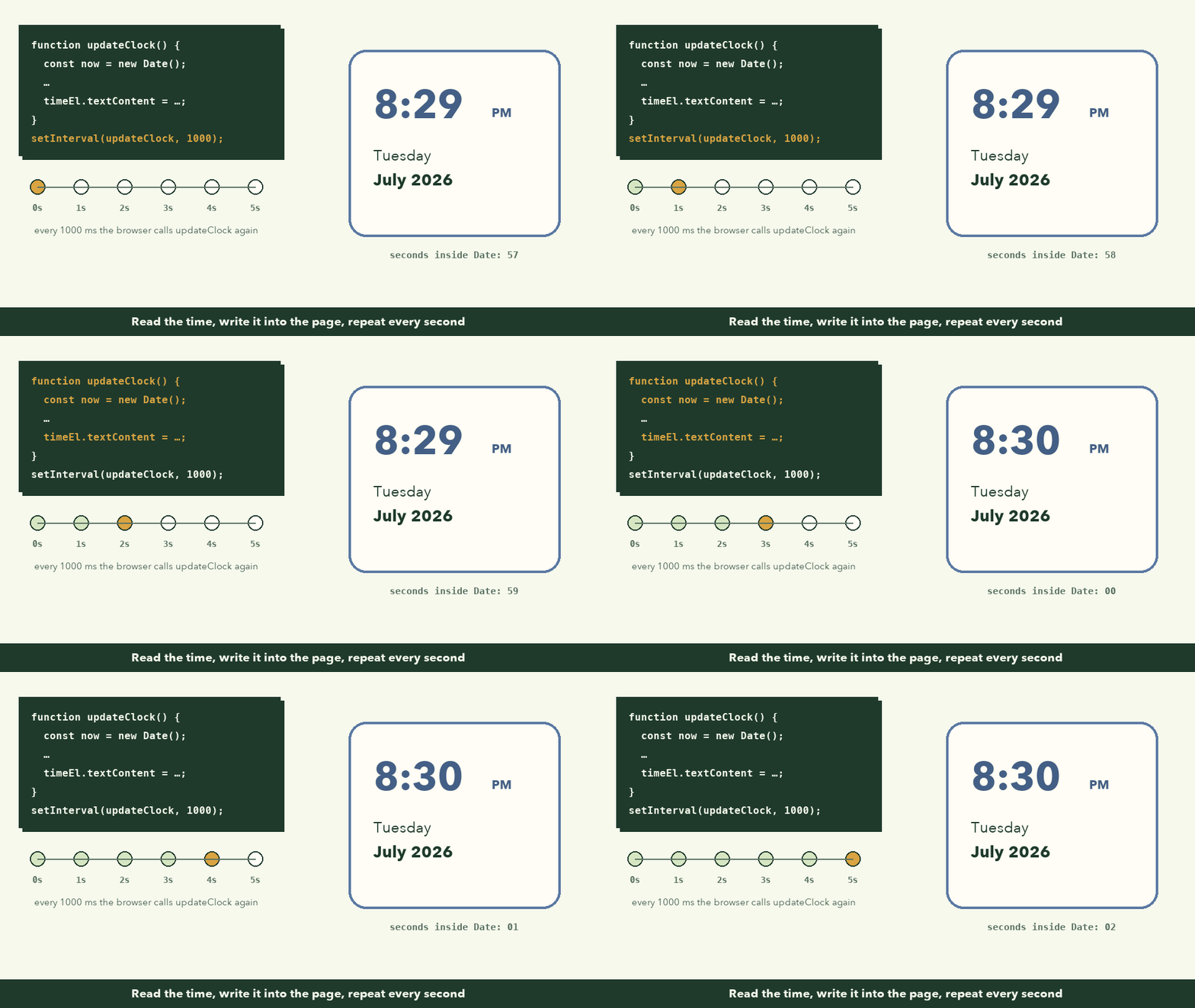
setInterval(fn, 1000) calls fn every 1000 milliseconds, forever. Notice we pass updateClock, without parentheses. We're handing over the function itself for the browser to call later, not calling it now.
We also call updateClock() once immediately. Otherwise the first second after the page loads would still show --:--.
Why every second, when it only shows minutes? If you updated once a minute and the page loaded at 8:29:59, the clock would show 8:29 for almost a full extra minute. Checking every second keeps it at most one second behind. The work is tiny.
Step 5: The birthday countdown
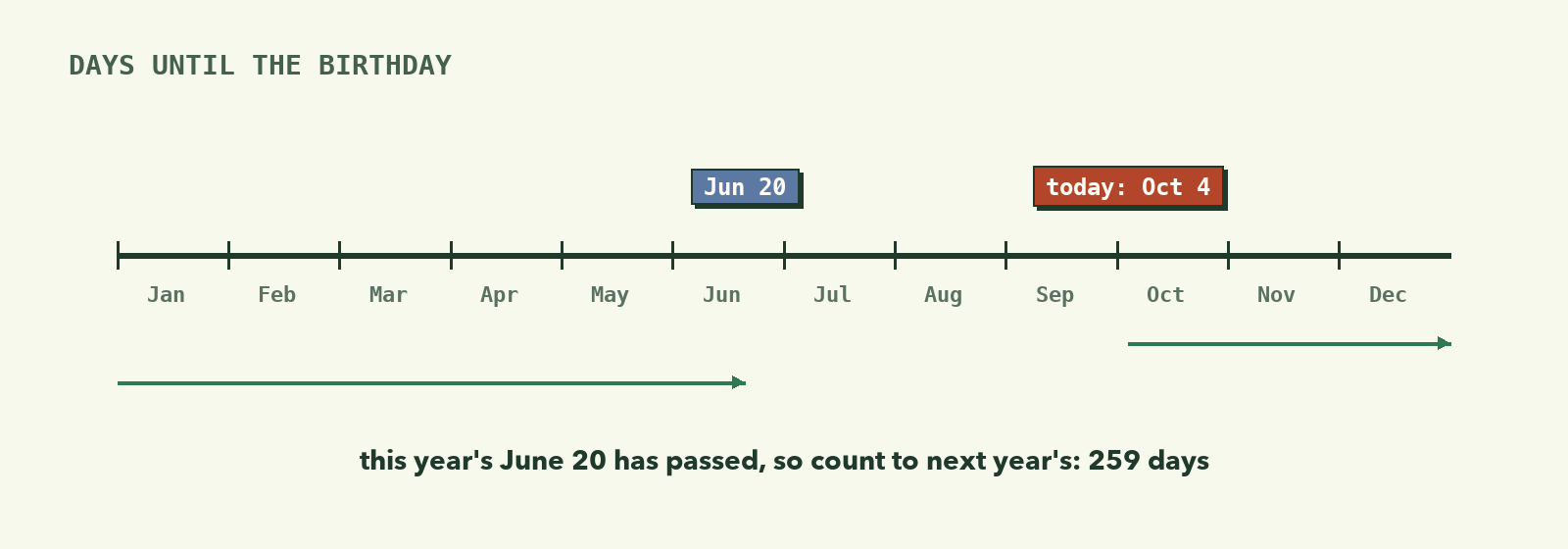
The date card should say how many days until June 20. Here's the plan in plain words:
- Take today, at midnight.
- Make a date for June 20 this year.
- If that's already passed, use June 20 next year.
- Subtract, and turn milliseconds into days.
const BIRTHDAY_MONTH = 5; // June. JavaScript counts months from 0.
const BIRTHDAY_DAY = 20;

function daysUntilBirthday() {
  const today = new Date();
  today.setHours(0, 0, 0, 0);

  let next = new Date(today.getFullYear(), BIRTHDAY_MONTH, BIRTHDAY_DAY);
  if (next < today) {
    next = new Date(today.getFullYear() + 1, BIRTHDAY_MONTH, BIRTHDAY_DAY);
  }

  const msPerDay = 24 * 60 * 60 * 1000;
  return Math.round((next - today) / msPerDay);
}
The details that trip people up:
- Months start at 0. January is 0, so June is 5. It's one of JavaScript's oldest quirks. The comment is there so nobody "fixes" it to 6.
setHours(0, 0, 0, 0)resets today to midnight. Without it, at 11pm the count would be a fraction of a day off.- Subtracting two dates gives the difference in milliseconds. Dividing by the milliseconds in a day gives days.
Math.roundcleans up the hour of difference that daylight saving time can add. ALL_CAPSnames are a convention for values that never change, set once at the top of the file where they're easy to find.
Then show it, with friendlier text for the special days:
const days = daysUntilBirthday();
const countdownEl = document.querySelector("#countdown");

if (days === 0) {
  countdownEl.textContent = "Happy birthday! 🎉";
} else if (days === 1) {
  countdownEl.textContent = "Birthday tomorrow";
} else {
  countdownEl.textContent = `in ${days} days`;
}
"in 1 days" would be wrong, and "in 0 days" would be sad. Handling the edge cases is what makes it feel finished.
Checkpoint
Reload the page. The clock shows your real time and ticks, and the birthday card shows a real countdown:

If something looks wrong
- Nothing changes. Open DevTools, go to Console, and look for a red error. The most common is
Cannot set properties of null, which means aquerySelectordidn't find its element. Check the id in the HTML matches the selector exactly, including the#. - The script doesn't seem to load at all. Make sure
<script src="script.js"></script>is at the end of<body>, so the elements exist before the script looks for them. - The countdown is off by a month. Months count from 0. June is
5.
What to remember
- Front-end JavaScript is mostly find an element, compute a value, write it in.
new Date()is a snapshot of now; ask it for pieces, or format it withtoLocaleDateString.setInterval(fn, ms)repeats work; call the function once first so there's no blank moment.- Use
textContentto put text on the page. - Handle the edge cases: 0 and 1 days, midnight, months starting at 0.
Next, user interaction: The Slider and the Credits Panel.