JavaScript: The Slider and the Credits Panel
Make the page respond to people. Build a slider that rotates on its own, jumps when you click a dot, and politely pauses while someone is reading. Then a pop-up panel that closes the three ways people expect: the button, the Escape key, or a click anywhere else.
The clock in the last lesson changes on its own. This lesson is about changes the visitor causes: clicking a dot, pressing a key, tapping somewhere else on the screen.
Both features here are small. But they're where beginner JavaScript usually goes wrong in ways that annoy real people: sliders that rush on while you're still reading, pop-ups you can't close without a mouse. We'll build them the polite way from the start.
The slider: one number, one class
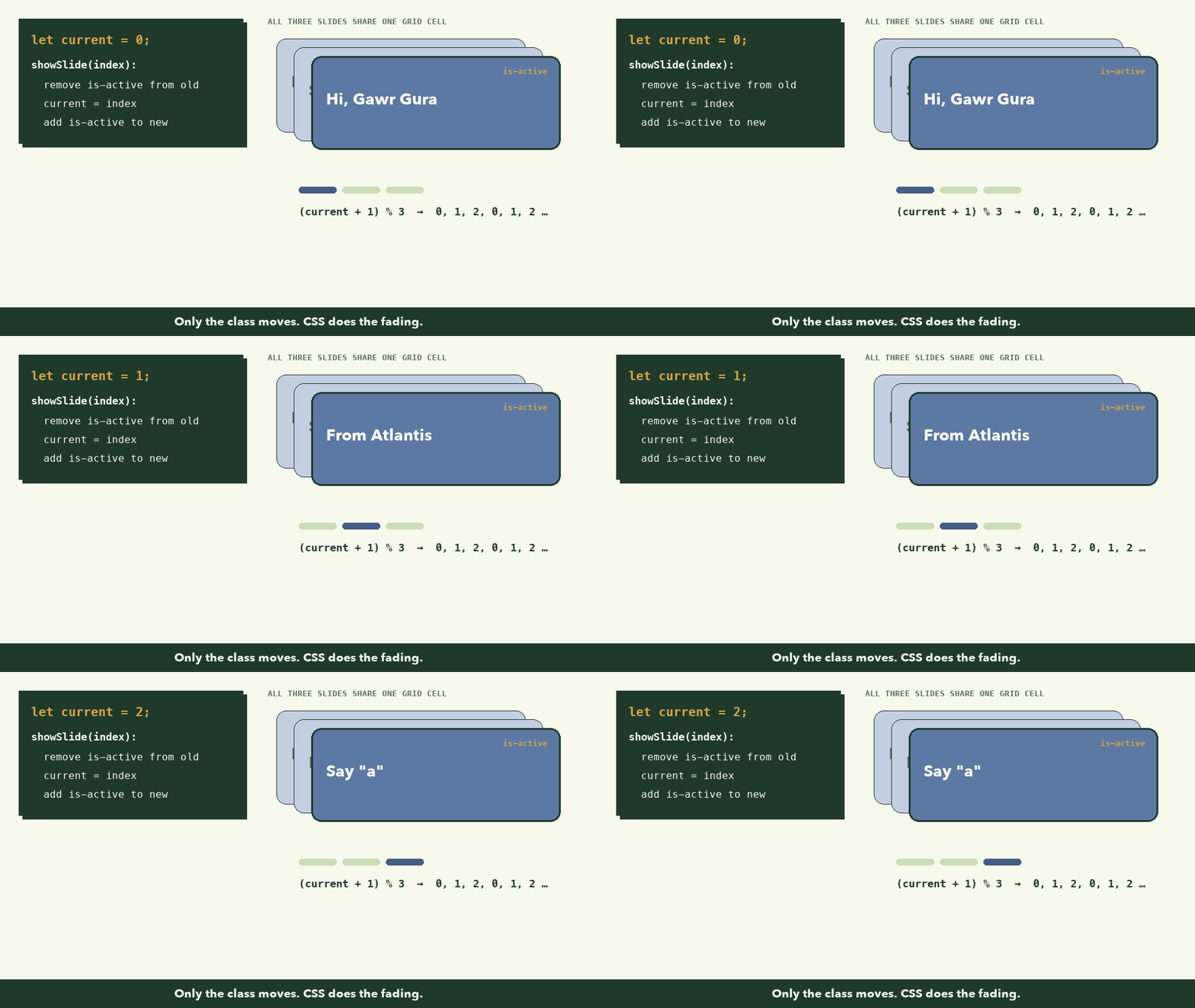
Here's the whole idea in one sentence: a variable remembers which slide is showing, and a class marks it. CSS already knows how to fade slides in and out based on the is-active class (lesson 6). JavaScript's only job is to move that class.
const slides = document.querySelectorAll(".slide");
const dots = document.querySelectorAll(".dot");
const hero = document.querySelector(".hero");
let current = 0;
let timer = null;
querySelectorAll returns every match, as a list. slides[0] is the first slide, slides[2] the third. current uses let because it will change; it starts at 0, matching the slide that has is-active in the HTML.
Showing a slide
function showSlide(index) {
  slides[current].classList.remove("is-active");
  dots[current].classList.remove("is-active");
  dots[current].removeAttribute("aria-current");

  current = index;

  slides[current].classList.add("is-active");
  dots[current].classList.add("is-active");
  dots[current].setAttribute("aria-current", "true");
}
Three steps: turn off the old one, update current, turn on the new one. classList.add / remove change an element's classes without touching its other classes.
We also move aria-current onto the active dot. Sighted users see the bright bar; screen reader users hear "Slide 2, current". Same information, two senses.
Moving forward forever
function nextSlide() {
  showSlide((current + 1) % slides.length); // after the last one, wrap to 0
}
% (remainder) makes the count wrap around: with 3 slides, (0+1) % 3 is 1, (1+1) % 3 is 2, and (2+1) % 3 is 0. Back to the start, with no if needed. You'll use this pattern for carousels, playlists and anything else that loops.
Autoplay, done politely
function startAutoplay() {
  // People who asked their system for less motion get no autoplay.
  if (window.matchMedia("(prefers-reduced-motion: reduce)").matches) return;
  stopAutoplay();
  timer = setInterval(nextSlide, 5000);
}

function stopAutoplay() {
  clearInterval(timer);
}
setIntervalreturns an id. We keep it intimersoclearInterval(timer)can stop it later.startAutoplaycallsstopAutoplayfirst, so you can never accidentally run two timers at once. Two timers would make the slides race.prefers-reduced-motionis a system setting people turn on when movement makes them dizzy or distracts them.matchMedialets JavaScript read it. If it's on, the slider simply doesn't move by itself. The dots still work.
Then the events:
dots.forEach((dot, index) => {
  dot.addEventListener("click", () => {
    showSlide(index);
    startAutoplay(); // restart the 5 seconds after a manual choice
  });
});

// Pause while someone is reading or using the keyboard inside the hero.
hero.addEventListener("mouseenter", stopAutoplay);
hero.addEventListener("mouseleave", startAutoplay);
hero.addEventListener("focusin", stopAutoplay);
hero.addEventListener("focusout", startAutoplay);

startAutoplay();
addEventListener(event, fn)runsfnwhenever that event happens on the element.forEach((dot, index) => …)loops over the dots and gives us each one's position, so dot 2 knows to show slide 2.- Restarting the timer after a click gives the visitor a full five seconds with the slide they chose.
mouseenter/mouseleavepause while the pointer is over the hero, so a slide never changes under someone who's reading it.focusin/focusoutdo the same for keyboard users. When someone Tabs to a dot, the slider holds still.
Because the dots are real <button>s (lesson 2), pressing Enter or Space on one fires the same click event. Keyboard support came free with the right HTML.
The credits panel
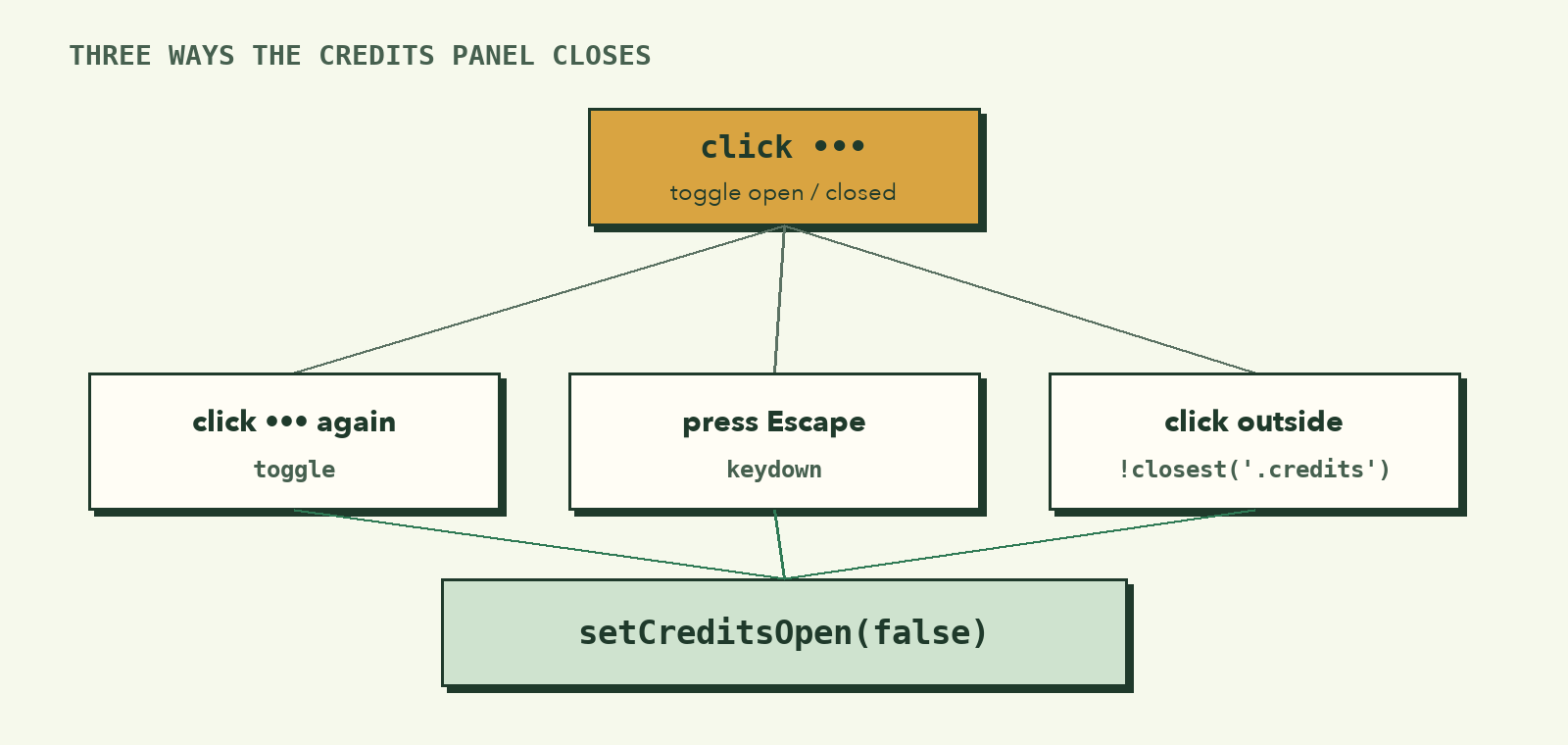
The ••• button opens a panel listing every artist. People expect a pop-up like this to close in three ways, so it should:
const creditsToggle = document.querySelector(".credits-toggle");
const creditsPanel = document.querySelector("#credits-panel");

function setCreditsOpen(open) {
  creditsPanel.hidden = !open;
  creditsToggle.setAttribute("aria-expanded", String(open));
}
One function owns the open/closed state, and everything else calls it. That way the panel and the button can never disagree:
hiddenis a real HTML attribute. The browser hides elements that have it, and screen readers skip them. SettingcreditsPanel.hidden = trueadds it;falseremoves it.aria-expandedtells screen readers whether the button's panel is open. It's the same pattern your browser's own menus use.
Now the three ways to open and close it:
creditsToggle.addEventListener("click", () => {
  setCreditsOpen(creditsPanel.hidden); // hidden means closed, so open it
});

// Close it with Escape, or by clicking anywhere else.
document.addEventListener("keydown", (event) => {
  if (event.key === "Escape") setCreditsOpen(false);
});

document.addEventListener("click", (event) => {
  if (!event.target.closest(".credits")) setCreditsOpen(false);
});
- The toggle passes
creditsPanel.hidden: if it's hidden (closed), that'strue, so we open it, and the other way round. One line handles both directions. keydownondocumenthears every key press on the page.event.keynames the key.- The outside click: every click on the page reaches
document.event.targetis the element that was actually clicked, andclosest(".credits")walks up from it looking for the credits bar. If there isn't one, the click was outside, so we close. Clicks inside the panel, like on an artist's link, keep it open.
Checkpoint: try to break it
Reload, then test like a tester:
- Wait five seconds. The slide changes. Hover over the hero: it stops.
- Click the third bar. Slide 3 shows, and the bar lights up.
- Press Tab until a bar is focused, then press Enter. It works with no mouse.
- Click •••. The panel opens. Press Escape: it closes. Open it again, then click the hero: it closes.
- Turn on Reduce motion in your system settings and reload. The slider stays still until you click.
If something looks wrong
- Slides change twice as fast after a while. Two timers are running. Make sure
startAutoplaycallsstopAutoplay()first. - The panel closes the moment it opens. The outside-click check is catching the button's own click. Check the button is inside
.credits, soclosest(".credits")finds it. - Clicking a dot does nothing. In the Console, run
document.querySelectorAll(".dot").length. If it's 0, the class names in the HTML don't match.
What to remember
- Keep state in a variable (
current) and make the page match it by moving a class. addEventListenerconnects events (click, keydown, focus) to your functions.%wraps a counter around, which is perfect for anything that loops.- Respect
prefers-reduced-motion, pause autoplay while people read, and keep everything keyboard-reachable. - One function should own each piece of state (
setCreditsOpen), and everything else should call it.
Last lesson: make it work on phones, check it's accessible, and put it online: Responsive, Accessible, and Online.