HTML: Build Your First Web Page
Every page on the web, from Google to your bank, starts as a plain text file full of tags. Learn how a tag works, how a document is shaped, and build a profile page that opens in your own browser.
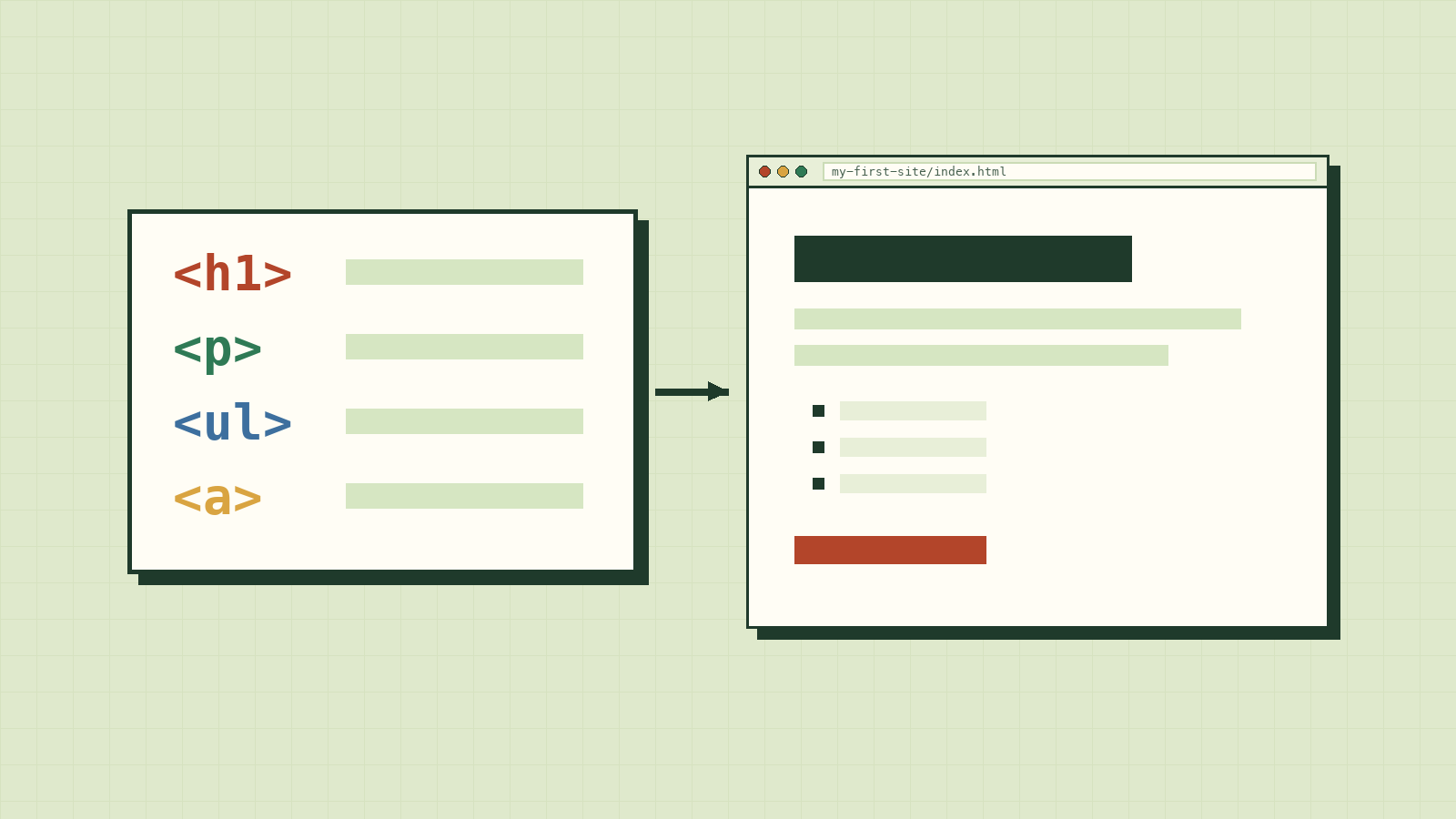
Right-click any web page and choose View Page Source. Behind the photos and buttons is a long text file full of angle brackets: <div>, <p>, <a href=…>. That's HTML, and every site on the web starts there.
In the first lesson, the server sent back a file and the browser turned it into a page. This time you'll write that file yourself. By the end you'll have a small profile page, made from nothing but a text editor, open in your own browser.
What HTML is for
HTML stands for HyperText Markup Language. It doesn't make things pretty and it doesn't make them move. Its job is to say what each piece of content is: this is a heading, this is a paragraph, this is a list, this is a link.
The three languages of the web split the work like this:
- HTML says what things are.
- CSS says how they look.
- JavaScript says what they do.
A heading is still a heading if you strip all the styling away. That's why HTML comes first.
Anatomy of an element
HTML is built from elements. Here's one, a link:
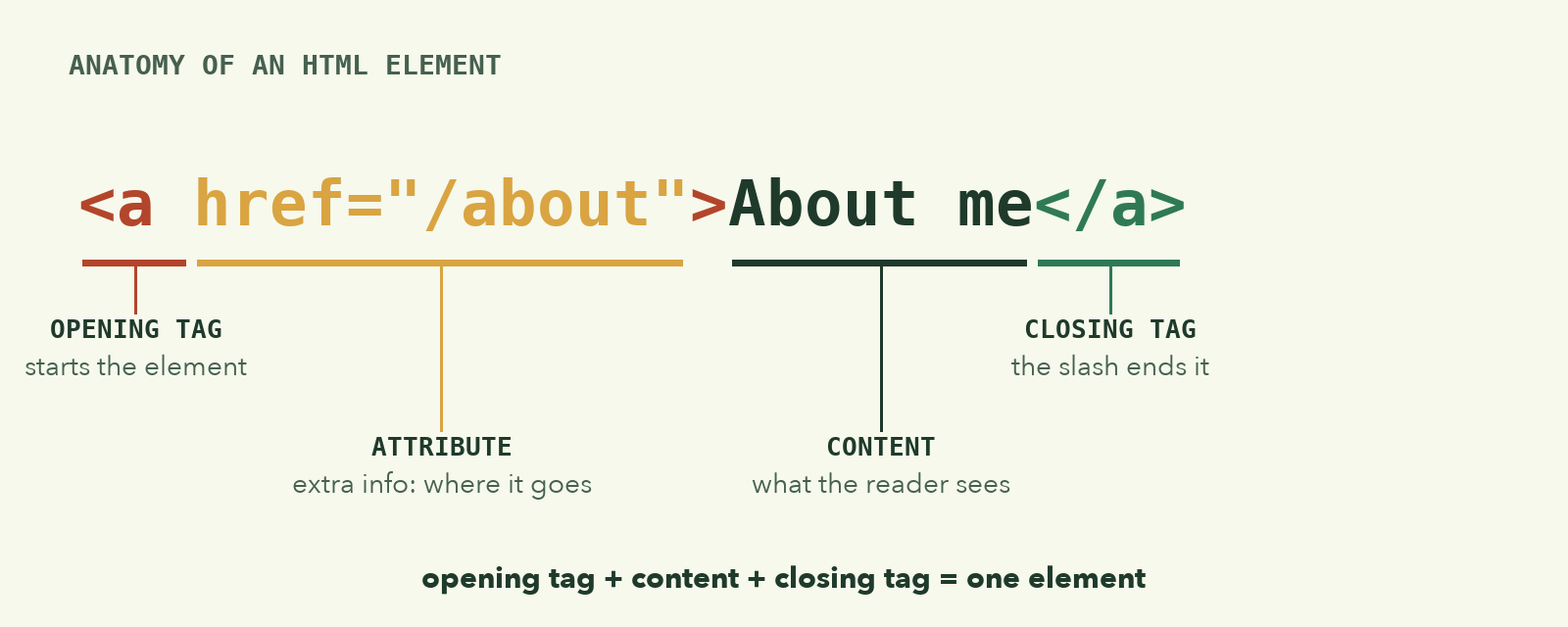
- The opening tag
<a …>starts the element.astands for anchor, the old name for a link. - An attribute like
href="/about"adds information. Here it says where the link goes. - The content,
About me, is what the reader sees and clicks. - The closing tag
</a>ends the element. Notice the slash.
A few elements never hold content, so they have no closing tag. These are called void elements:
<meta charset="UTF-8">
<img src="portrait.jpg" alt="Portrait of Panha">
That alt attribute matters. It describes the image for people using screen readers, and for everyone when the image fails to load. Always write one.
The shape of a document
A browser expects every page to follow the same outline:
<!doctype html>
<html lang="en">
  <head>
    <meta charset="UTF-8">
    <meta name="viewport" content="width=device-width, initial-scale=1.0">
    <title>My First Developer Page</title>
  </head>
  <body>
    <h1>Hello, World!</h1>
    <p>I am learning web development step by step.</p>
  </body>
</html>
Elements live inside other elements, so the whole document is really a family tree:
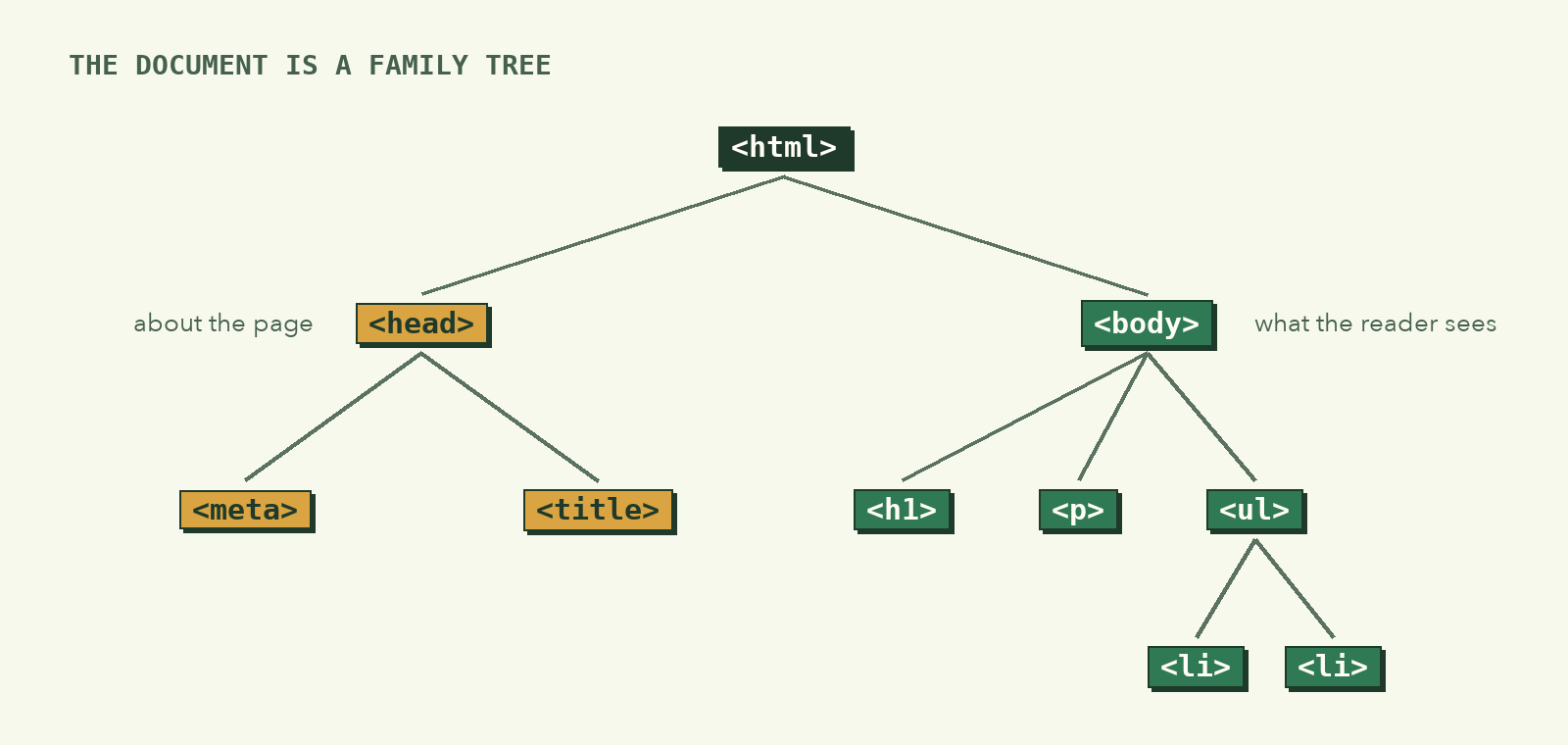
<!doctype html>tells the browser this is a modern HTML document.<html lang="en">wraps everything. Thelangattribute tells screen readers and translators what language to expect.<head>holds information about the page: its title (shown on the browser tab), its character set, how it should scale on phones.<body>holds everything the reader actually sees.
The indentation is for humans. The browser doesn't need it, but it lets you see at a glance who's inside whom.
Try it: build your profile page
Time to make something real.
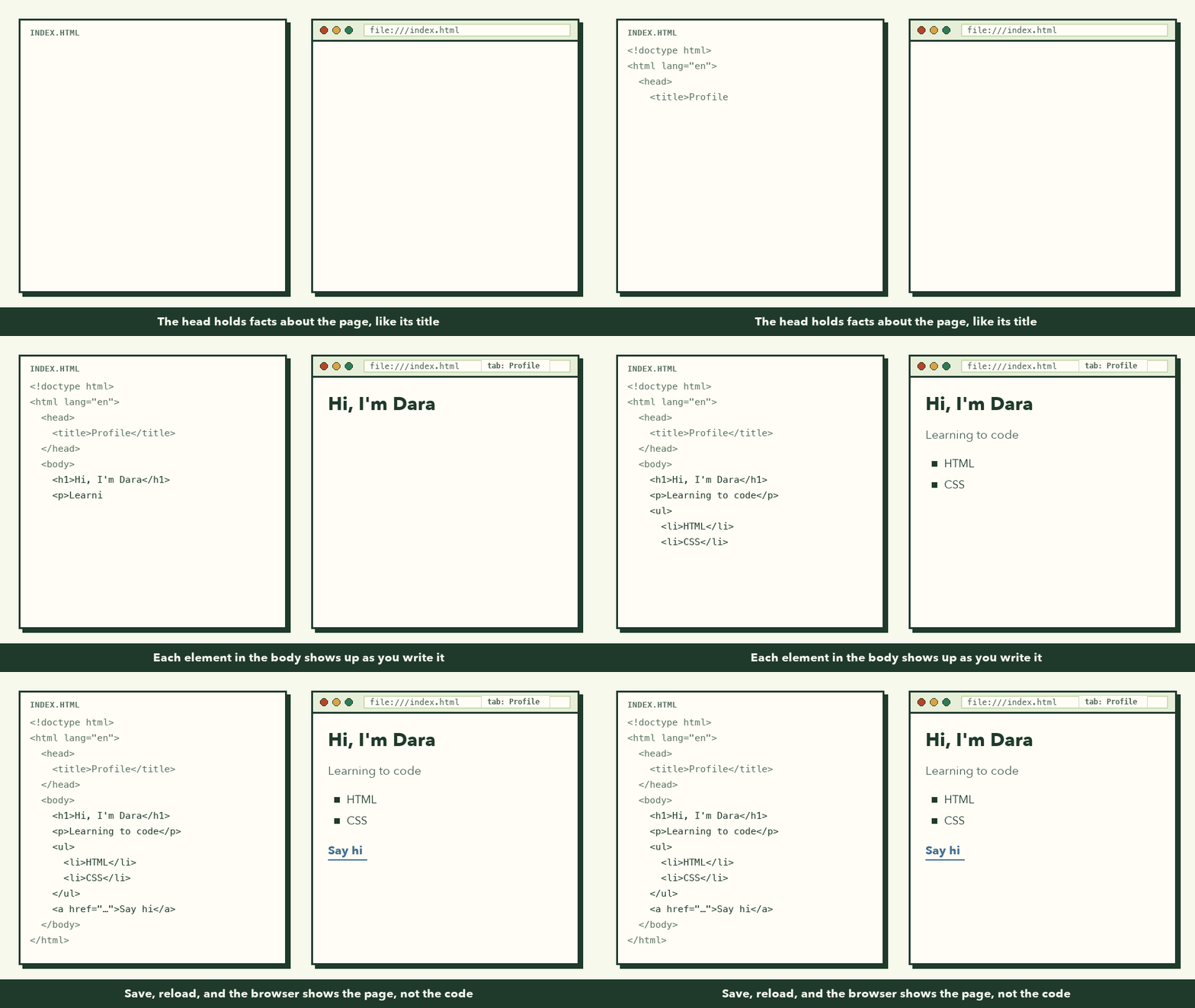
🎯 Hands-on Task (អនុវត្តផ្ទាល់)
- Create a folder called
my-first-site.- Inside it, create a file called
index.html.- Open it in a plain-text editor like VS Code.
- Paste in the code below, then save.
<!doctype html>
<html lang="en">
  <head>
    <meta charset="UTF-8">
    <meta name="viewport" content="width=device-width, initial-scale=1.0">
    <title>Developer Profile</title>
    <style>
      body {
        margin: 0;
        padding: 32px;
        font-family: system-ui, sans-serif;
        background: #090d16;
        color: #f1f5f9;
      }

      .card {
        max-width: 420px;
        margin: 0 auto;
        padding: 32px;
        border: 1px solid #334155;
        border-radius: 16px;
        background: #111827;
      }

      .badge { color: #34d399; }
      .skills { padding-left: 20px; }
      .btn { color: #93c5fd; }
    </style>
  </head>
  <body>
    <div class="card">
      <span class="badge">Aspiring Web Developer</span>
      <h1>Hello, I'm Learning to Code</h1>
      <p>
        Building web projects from first principles: understanding how the
        browser works and writing clear HTML.
      </p>

      <h2>Skills in Progress</h2>
      <ul class="skills">
        <li>HTML</li>
        <li>CSS</li>
        <li>Terminal</li>
      </ul>

      <a href="https://panha-insight.vercel.app" class="btn">Visit PanhaInsight</a>
    </div>
  </body>
</html>
The <style> block is CSS. It's only there so the result looks nice; you'll learn it properly soon.
- Open
index.htmlby double-clicking it in your file manager.- Check that you can see the heading, the paragraph, the list, and the link.
- Click the link. It should open PanhaInsight.
You're done when the browser shows a profile card, not a page of code. Now change the heading to your own name, save, and reload. You just edited a website.
If something looks wrong
- The browser shows the code as text. The file is probably called
index.html.txt. Turn on "show file extensions" and rename it. - Your changes don't appear. Save the file, then reload the tab. Make sure you're editing the same file the browser opened.
- Half the page is missing. Look just above where things disappear for a missing
>, a missing quote, or a tag you opened and never closed.
What to remember
- HTML says what content is. CSS styles it, JavaScript makes it act.
- An element is opening tag + content + closing tag. Attributes add details.
<head>is about the page.<body>is the page.- Every
<img>gets analt.
Next, we'll make this page mean more to browsers, screen readers, and search engines: Semantic HTML and Accessibility.